Power-ups
Power-up display modes
Display modes overview
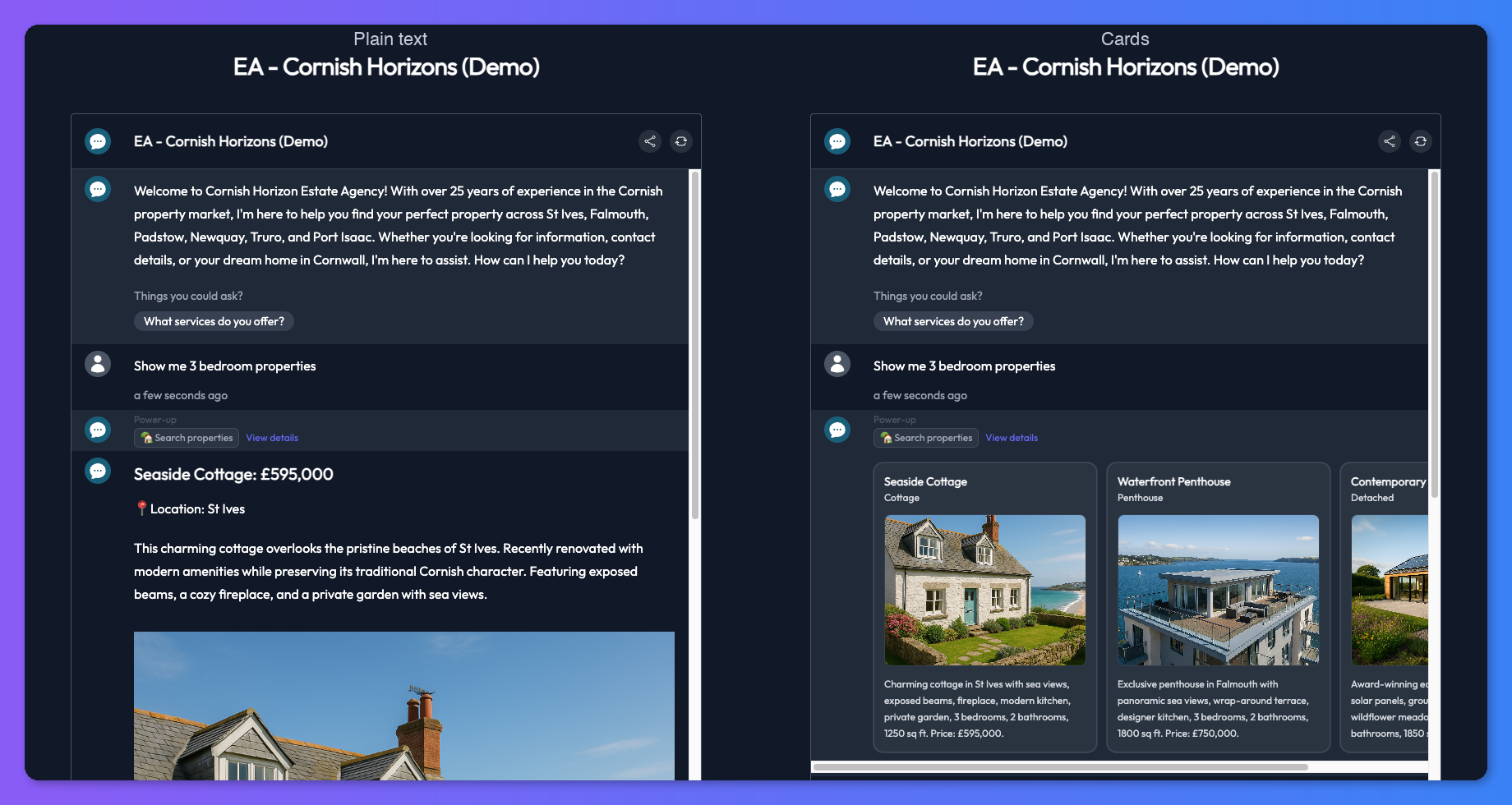
Some power-ups can take their raw response and render it as a rich visual component instead of a plain text message. When you enable a display mode on a power-up, Chat Thing adds an extra transform step: after the power-up runs, its result is handed to an LLM along with your guidance prompt, which converts it into the structured JSON that a display mode needs to render.
This is distinct from the Display Cards power-up, which is a standalone power-up the bot calls directly to show cards. Display modes, by contrast, are a rendering option you turn on for another power-up - most commonly the Use API power-up - so its response shows up as cards, a chart, a table, a map, or a diagram.
Which power-ups support display modes
Display mode support is opt-in per power-up type. Today, the Use API power-up supports it. To check whether a power-up supports display modes, open its settings page and look for a Display section. If it is there, that power-up can be rendered as any of the display modes below. If it is not, the power-up only replies in plain text.
Choosing a display mode
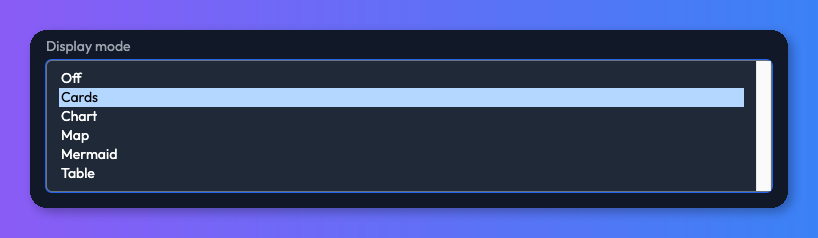
There are five display modes to choose from. Pick the one that best matches the shape of the data your power-up returns.
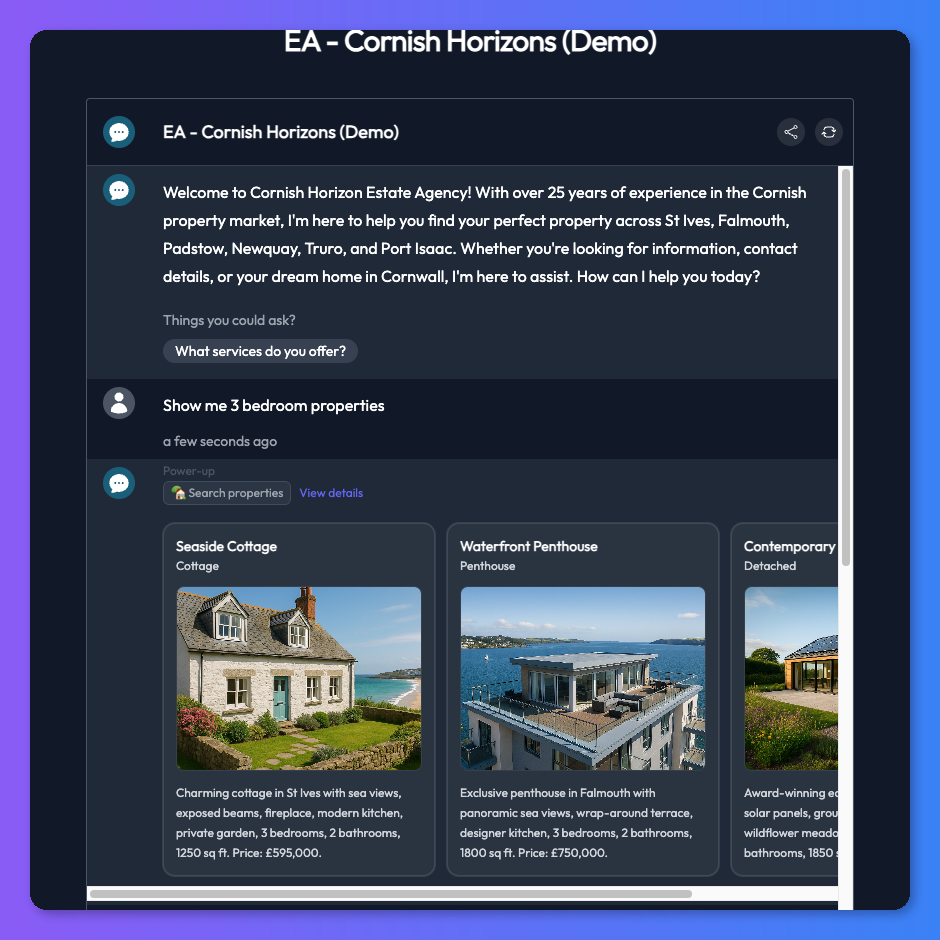
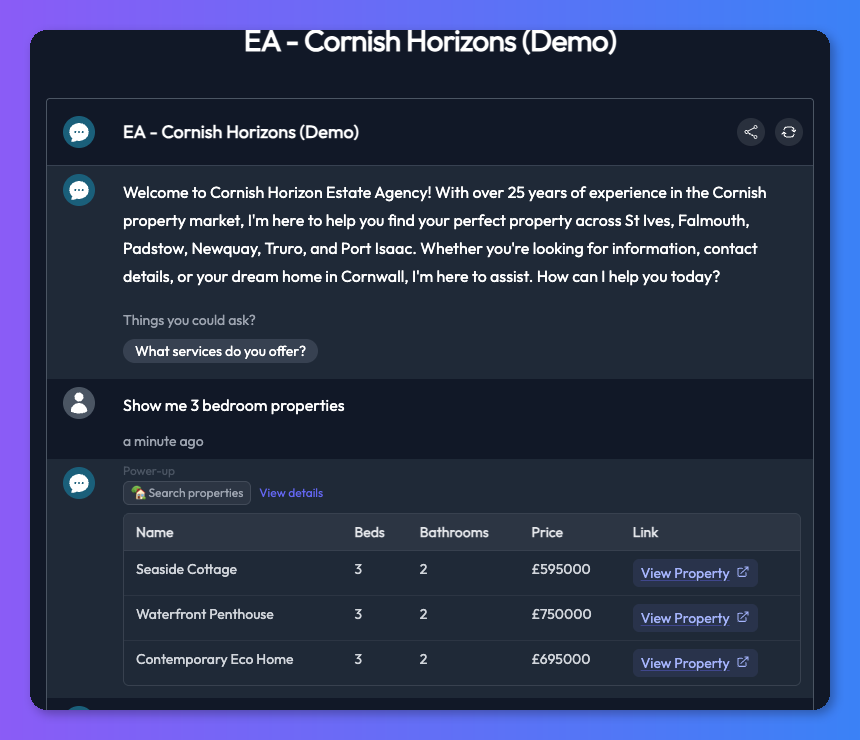
- Cards - a list of items with a title, description, and optional image and link. Best for product listings, search results, team members, or anything you want the user to browse.
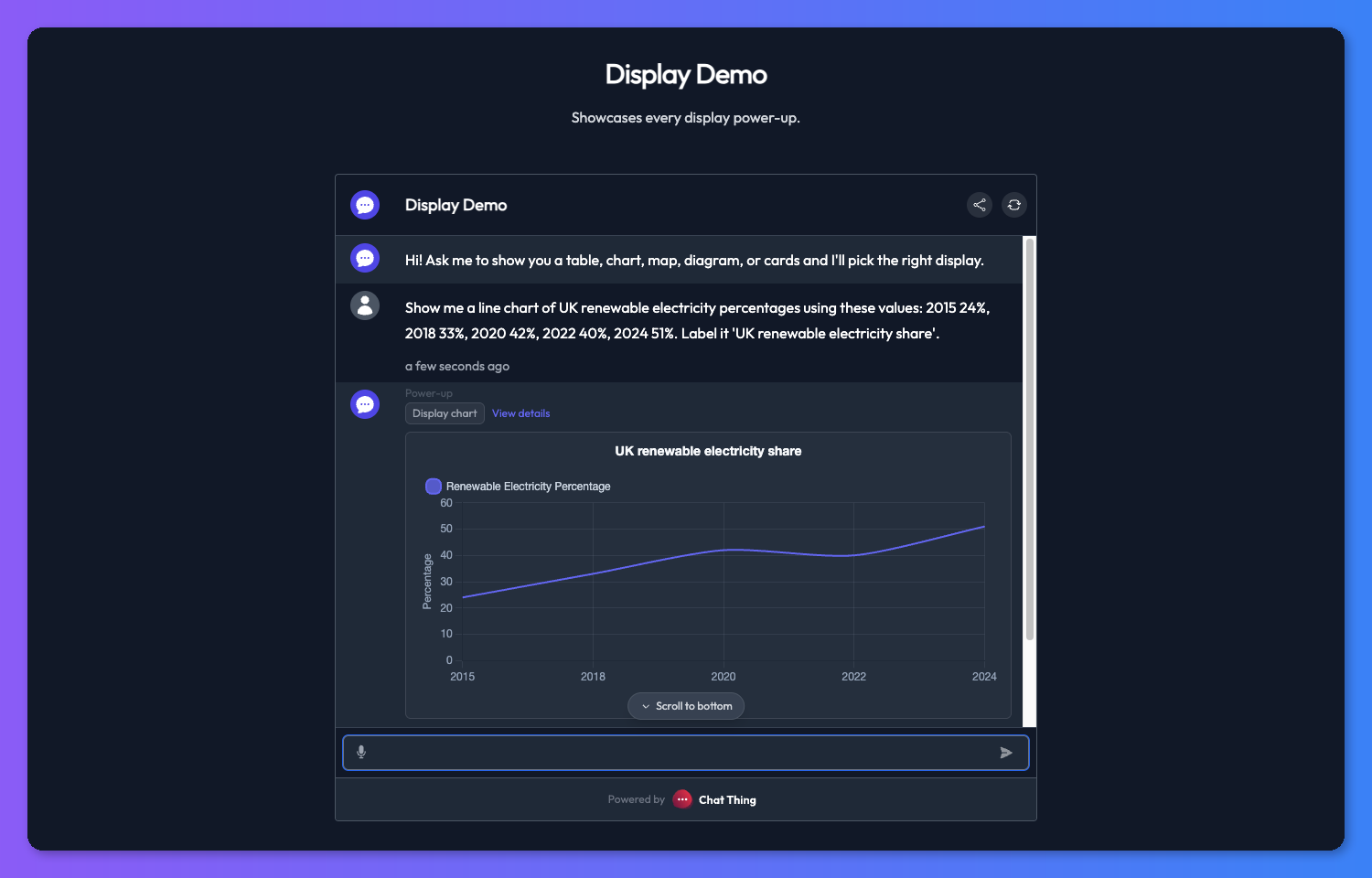
- Chart - numeric comparisons as a bar, line, pie, or doughnut chart. Best when you want to visualise numbers over categories or time.
- Table - structured rows and columns with text, image, or link column types. Best for dense comparisons where the user needs to see several fields side by side.
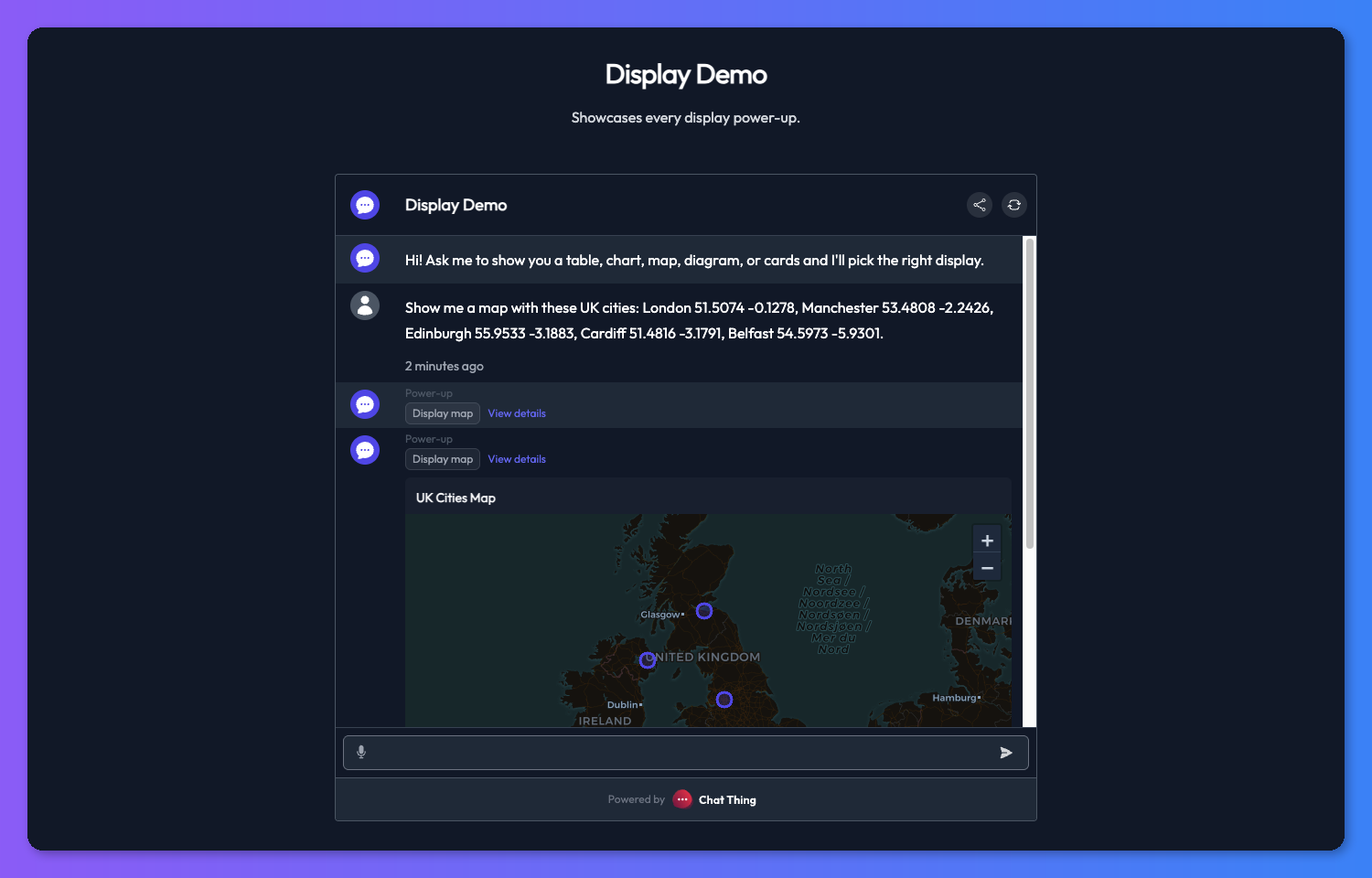
- Map - geographic data rendered on a map from a GeoJSON FeatureCollection. Points, lines, and polygons are all supported, and you can pick between auto, light, and dark map styles.
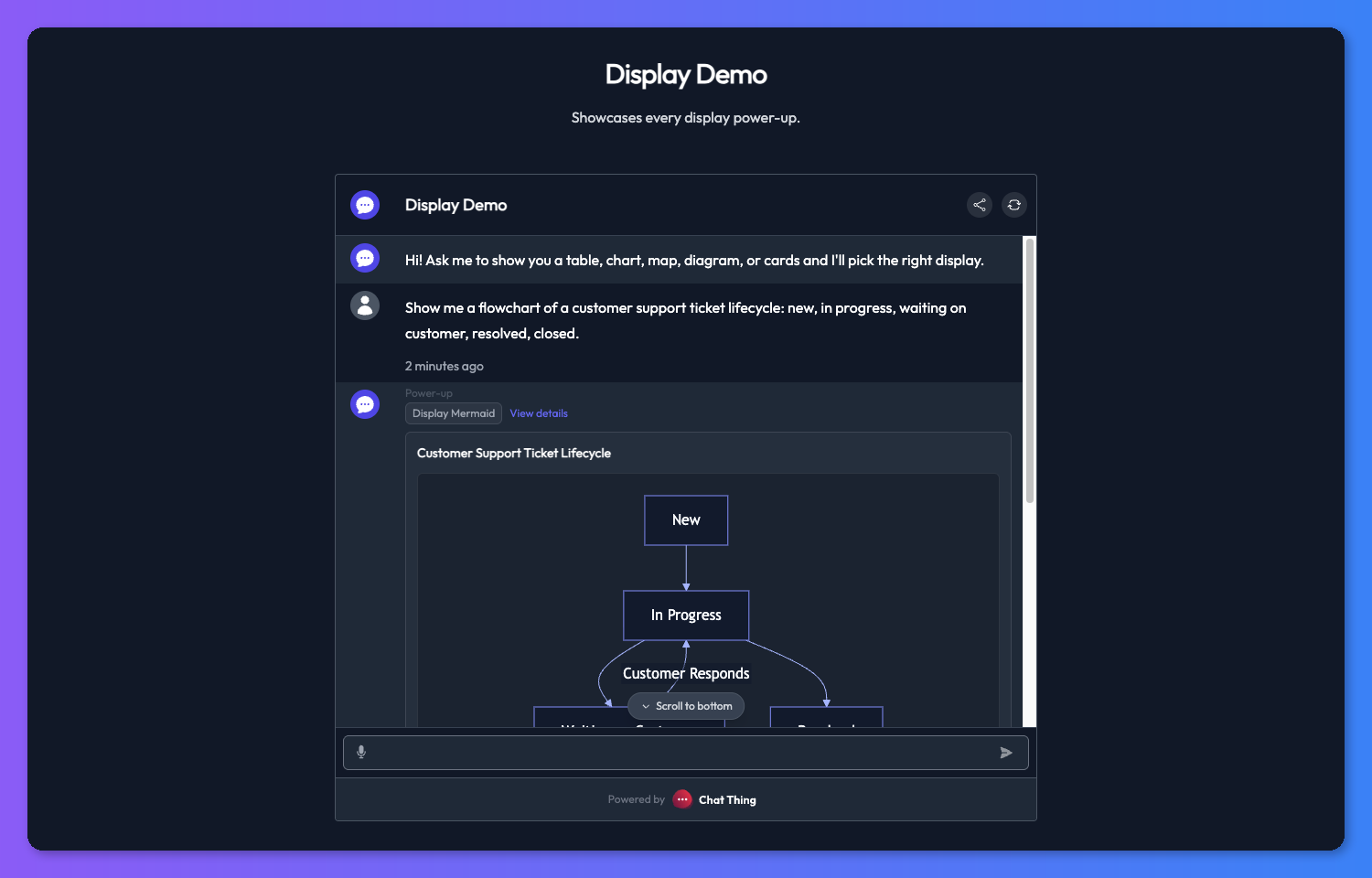
- Mermaid - flowcharts and diagrams rendered from Mermaid syntax. Best for workflows, decision trees, or relationships between things.
Mode-specific settings
Each display mode exposes its own small set of config fields on the power-up settings page:
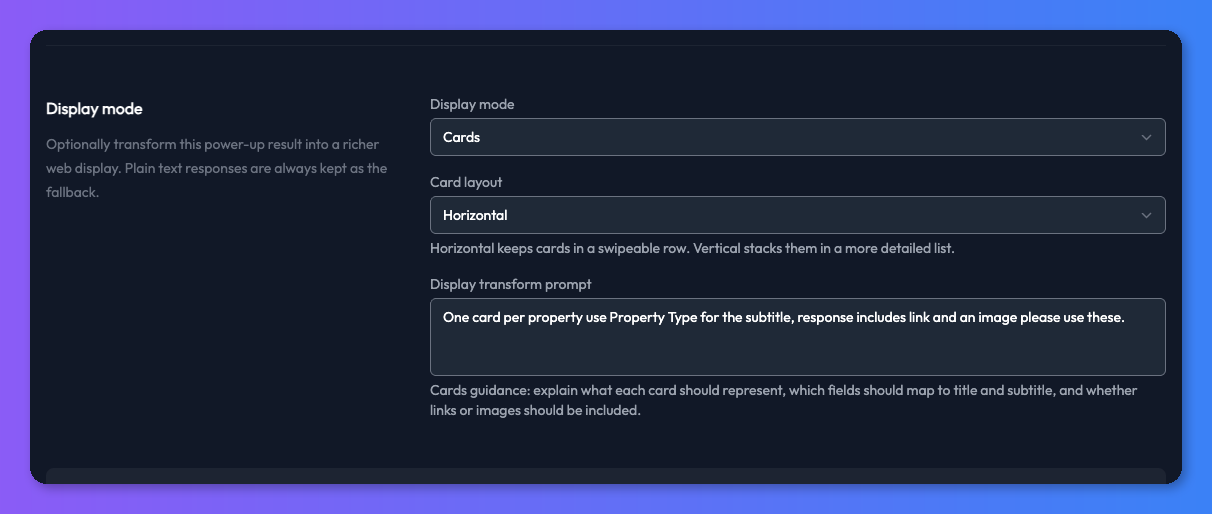
- Cards - a Card layout setting, either horizontal (a swipeable carousel) or vertical (a stacked list).
- Chart - a Chart type setting with bar, line, pie, or doughnut.
- Map - a Map style setting with auto, light, or dark.
- Table and Mermaid have no extra settings today - the transform picks the columns or diagram shape based on the data and your guidance prompt.
Any value you set on the power-up overrides whatever the transform would otherwise pick. So if you set the chart type to "line", every response from that power-up will render as a line chart regardless of what the data looks like.


The display transform prompt
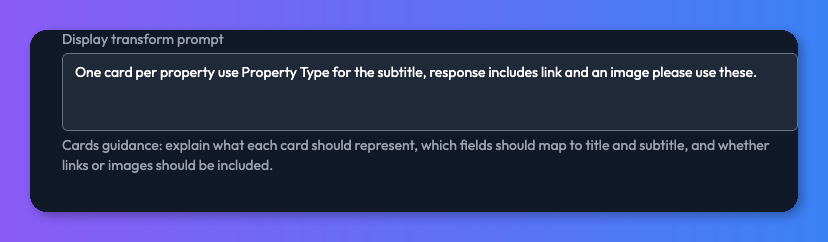
The transform prompt is the most important field in the Display section. It is free-form natural language guidance the transform LLM uses to turn the raw power-up response into the display JSON. Each mode ships with a placeholder example to show you the kind of thing to write.
Keep the prompt focused on the shape of the display rather than restating what the power-up does. A couple of examples:
- For a cards display: "One card per product. Use the product name as the title, price as the subtitle, keep descriptions under two sentences, and use the product image URL for the image field."
- For a chart display: "Plot month on the x-axis and revenue on the y-axis as a bar chart. Label the chart 'Monthly revenue'."
If the rendered display is missing a field you expected, your first move should almost always be to tighten this prompt rather than changing the power-up itself.
How it fits with the API response prompt
If you are using display modes with the Use API power-up, you may already be using its API response prompt to clean up the raw API response. The two run in sequence: the API response prompt runs first to shape or trim the raw response, and then the display transform runs on that shaped response.
This matters when an API returns a lot of data. The display transform only has as much context budget as your model allows, so if the raw response is huge, use the API response prompt to pre-trim it down to the fields the display actually needs before the transform sees it.
Tips and troubleshooting
Use "View details" to debug
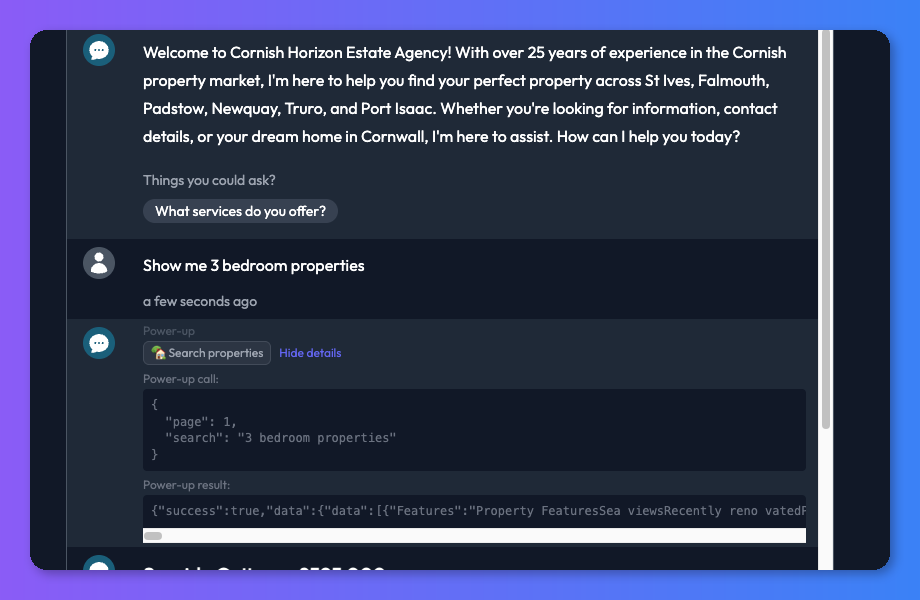
When a display renders in a way you did not expect, click View details on the power-up message in the chat. You will see both the raw response the power-up returned and the parsed display JSON that came out of the transform. It is the quickest way to tell whether the problem is in the power-up itself or in the transform prompt.
Tighten the prompt before changing the data
If a field is missing from the rendered display, resist the urge to change the power-up or the API behind it. Nine times out of ten the fix is a sharper transform prompt that tells the LLM exactly which source field should map to which display field.
Pre-trim huge responses
Some APIs return far more data than any transform can reliably process. If a power-up keeps timing out or producing broken displays, use the API response prompt to cut the raw response down to just the fields you care about.
The bot already knows what you showed
After a display renders, the bot knows what was on screen and will deliberately not re-list the items in its follow-up reply. This is intentional - it keeps the chat clean and avoids the bot repeating itself. If you want the bot to discuss, compare, or filter the displayed items, just ask it directly and it will use the underlying result to answer.