Channels
The WhatsApp channel allows you to interact with your bot via WhatsApp! Use it to create bots for your customers, colleagues and friends!
The WhatsApp integration connects your AI bot to WhatsApp via the Meta Business platform. Setup involves three stages: creating a Meta app, connecting it to Chat Thing, and (for production) generating a permanent access token. The guide below walks you through each stage.
WhatsApp quick start
If you want to get set up with WhatsApp quickly, check out the video below:
Create a Business Manager
Before you start
You'll need a personal Facebook profile to confirm your identity.
Before you can connect Chat Thing to WhatsApp, you need to create a Meta business account. If you already have one, you can move on to the next section. If not, Meta provide instructions for how to set one up here: Meta business account setup
Creating a WhatsApp application
Next, you can move on to creating a WhatsApp application for your bot.
- First, you need to create an application here: Meta applications.
- Click the "Create App" button in the top right.

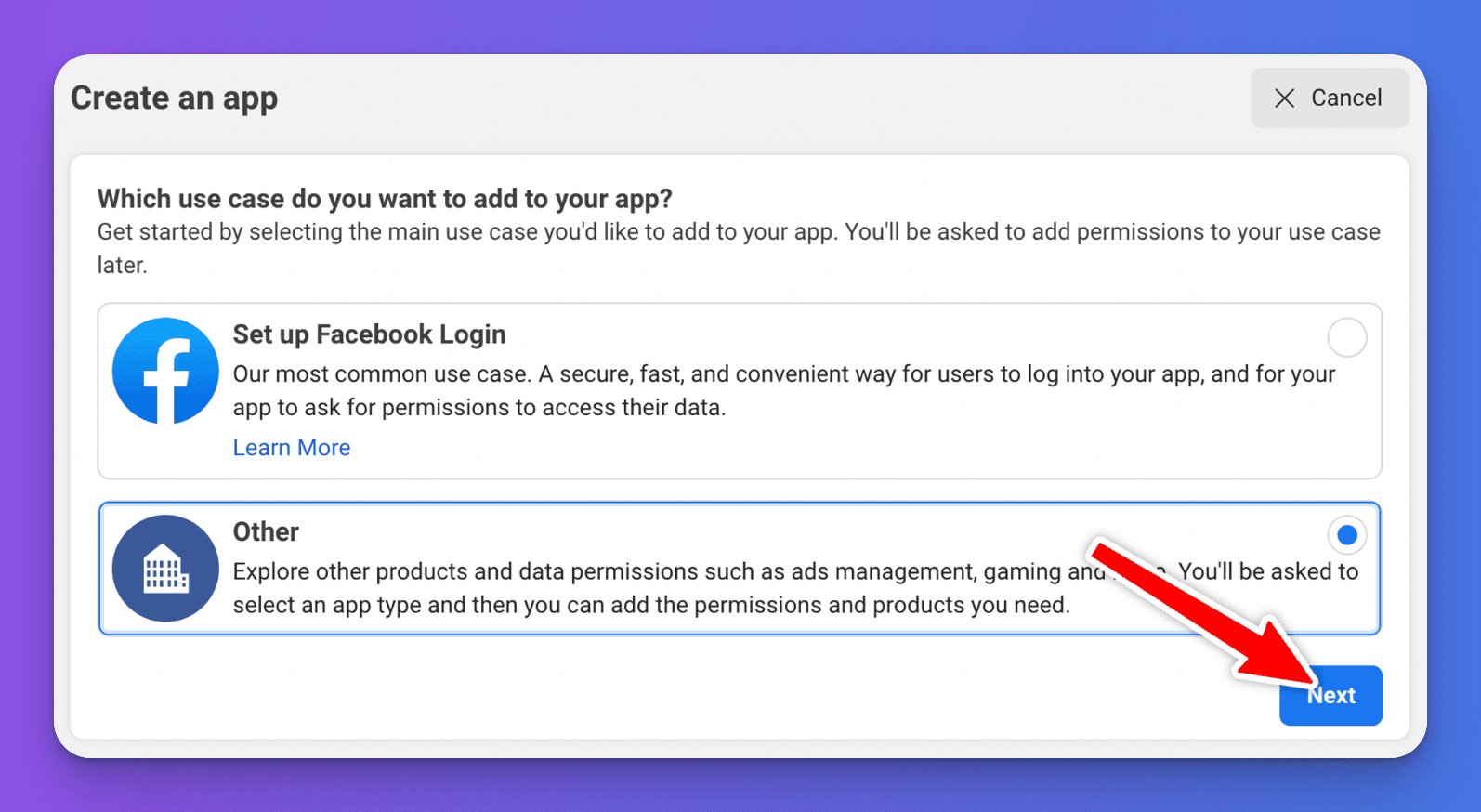
- Select Other as the use case and click the "Next" button.
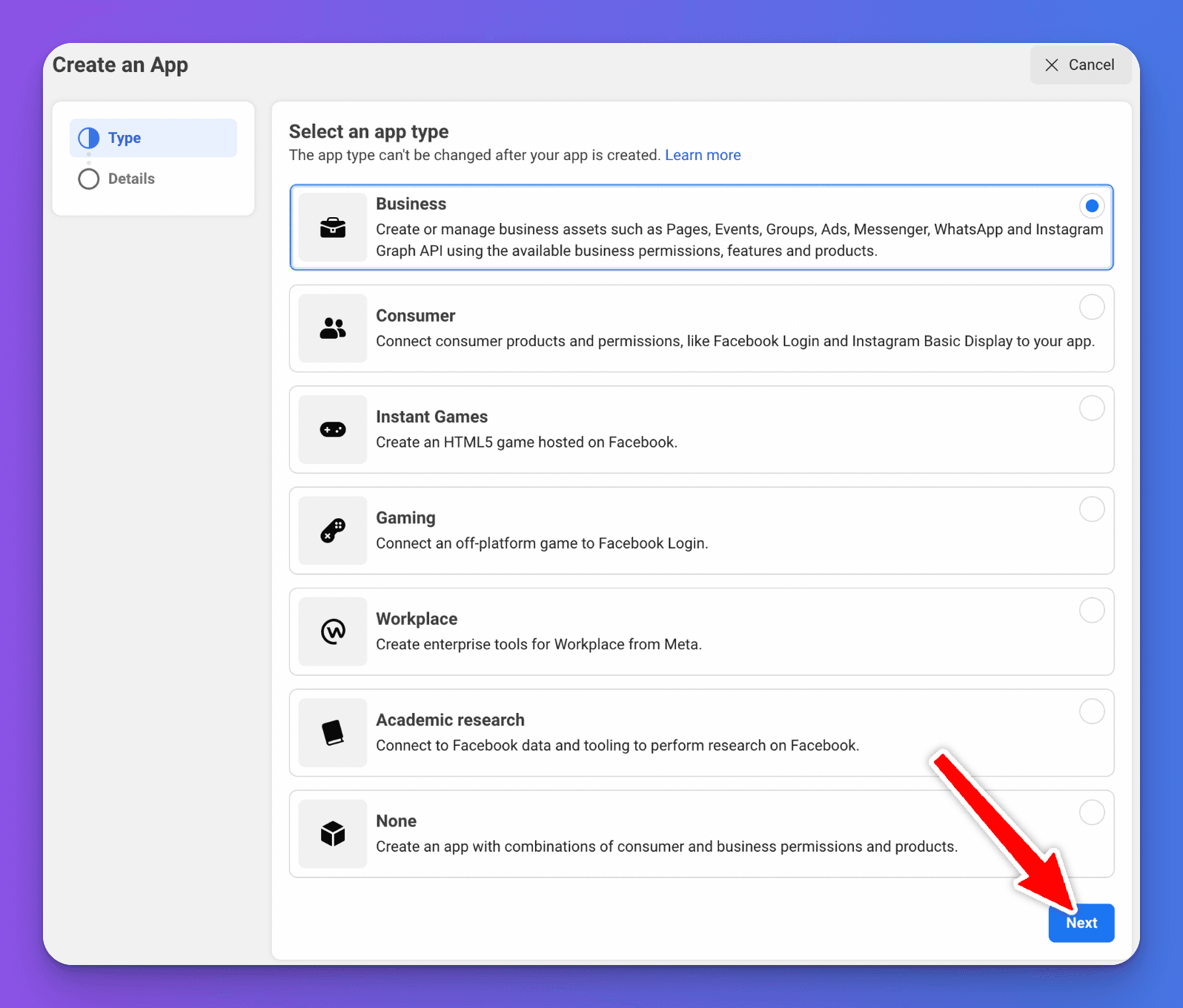
- Select Business as the app type and click the "Next" button.
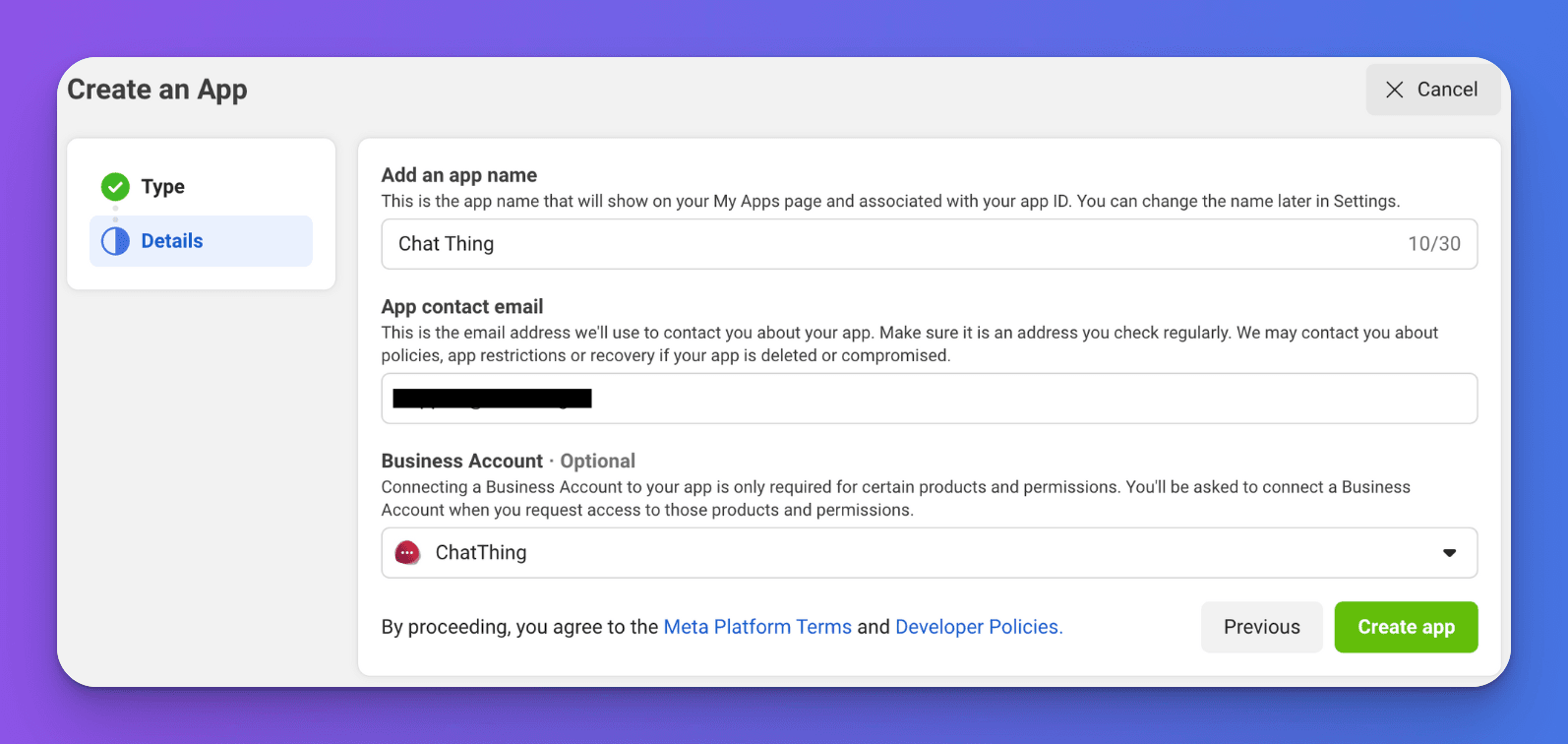
- On the "Create an App" screen, you'll need to provide the following information:
- Application name
- Application contact email
- Select the business account you created earlier
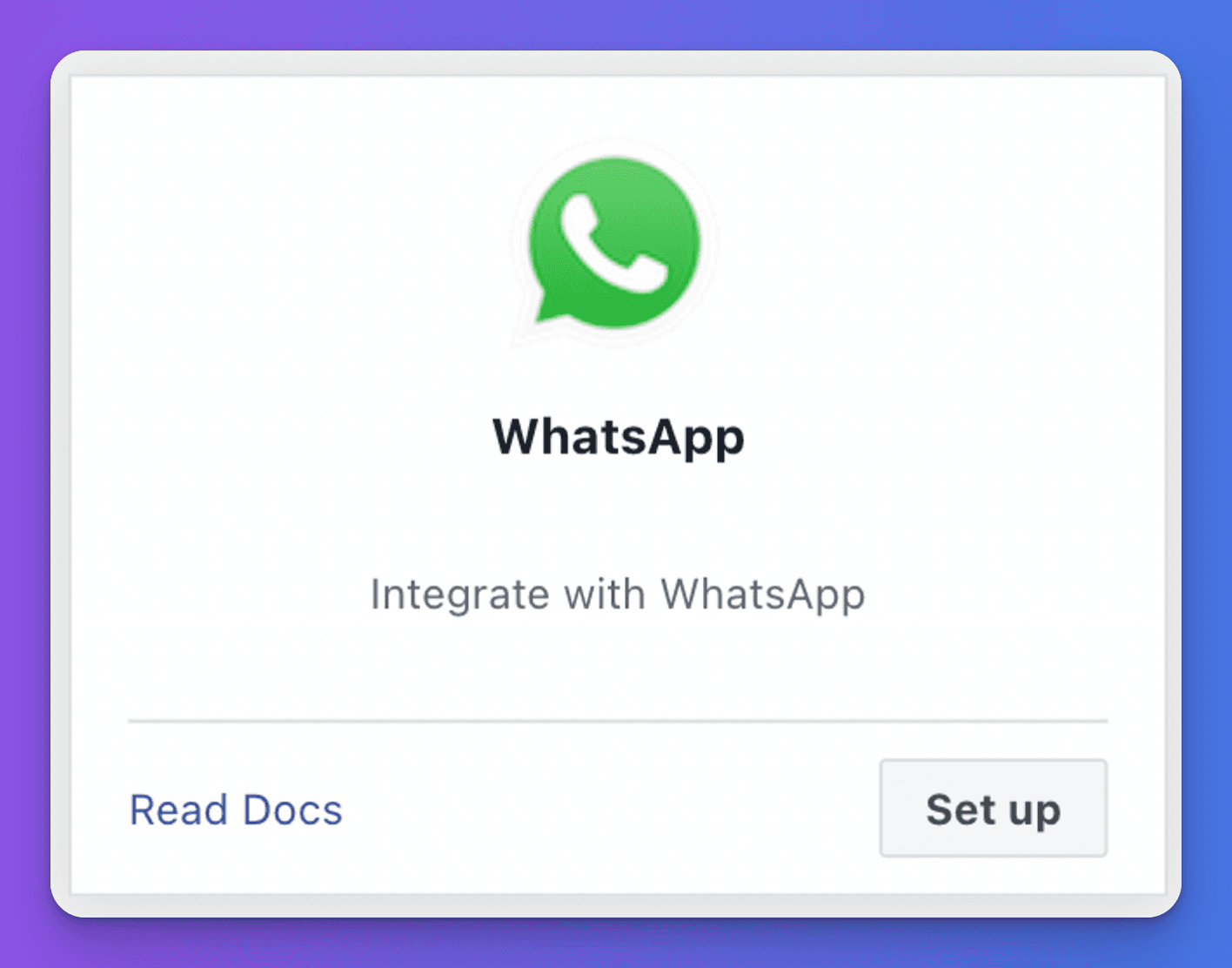
- Next, you should find yourself on the Meta for Developers > App Dashboard. In the main area, scroll down and find the WhatsApp product and click the "Set up" button.
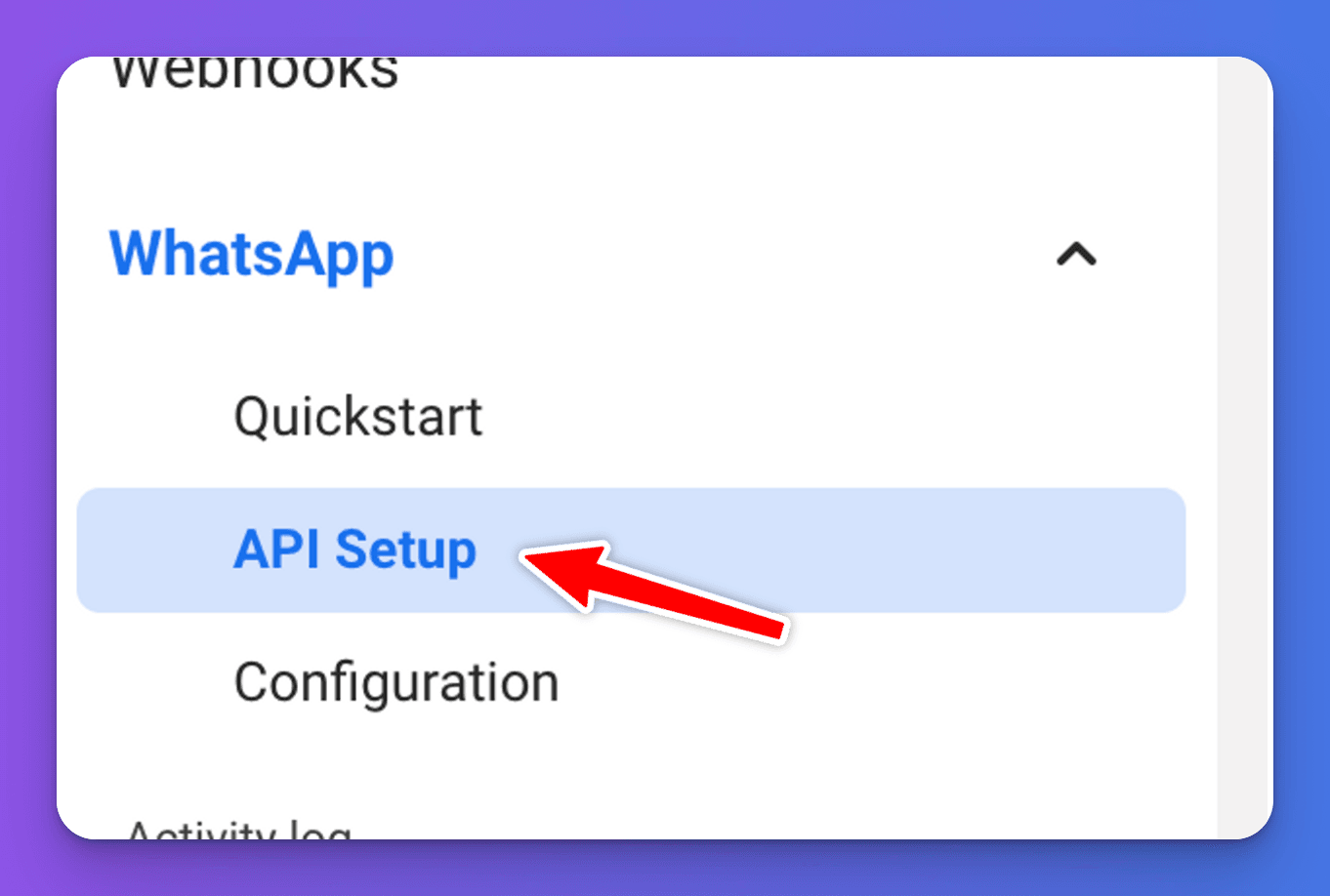
- Next, click on "API Setup" under "WhatsApp" in the sidebar.
- Here we can obtain a temporary access token. This will need to be updated to a permanent access token later on, but for now let's continue with a temporary token. Copy the "Temporary access token" at the top of the page.
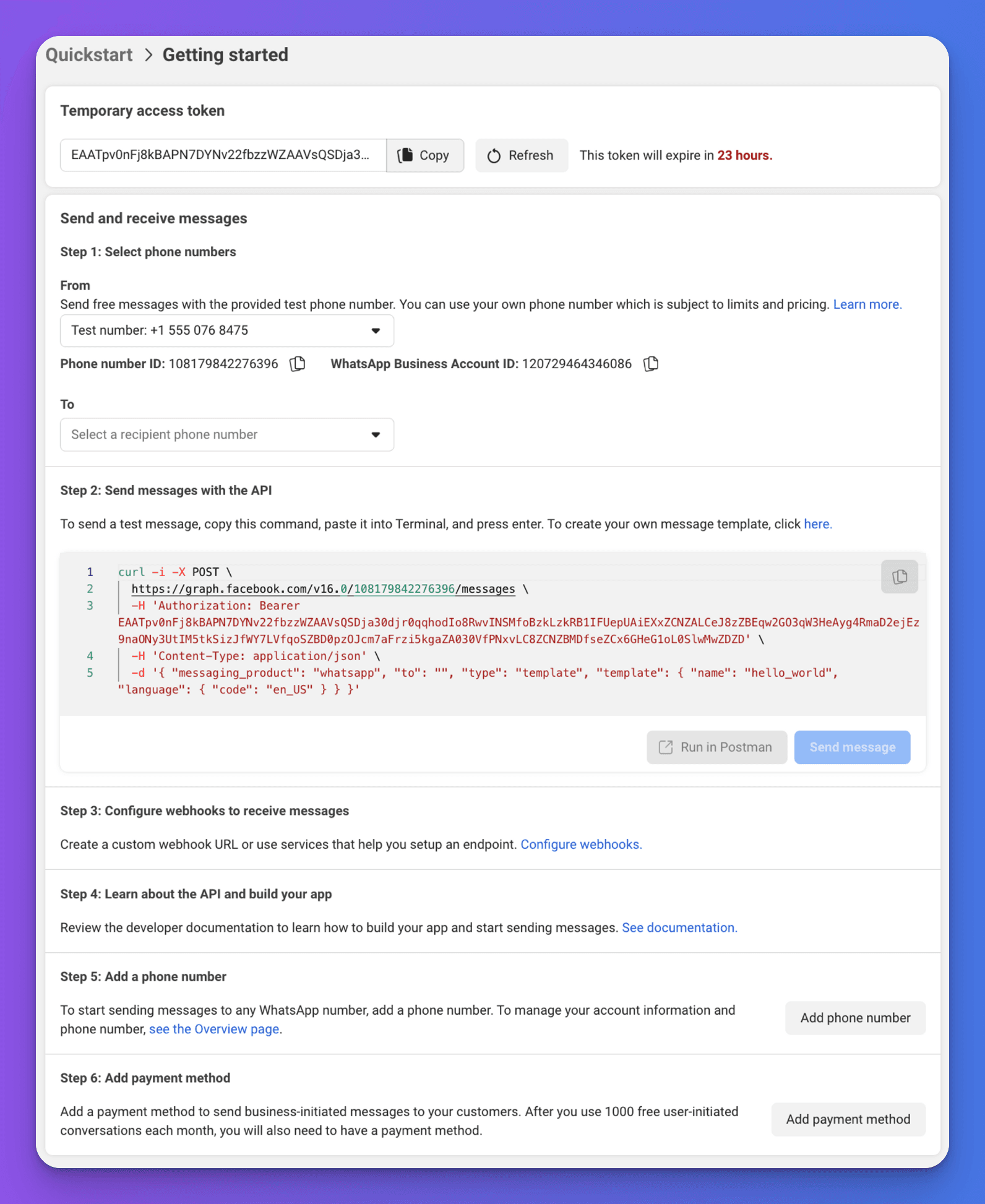
- We'll need to return to Meta at various points, so leave this screen open. Then, head back to your bot dashboard in Chat Thing to complete the rest of the setup.
Connecting your bot to WhatsApp
Before you start
The WhatsApp integration is only available on Standard, Pro and Enterprise plans.
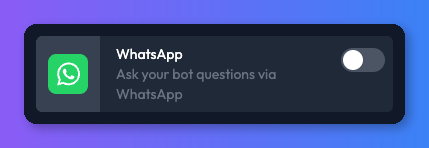
- From your bot dashboard, go to the Channels tab and enable the WhatsApp channel by clicking its toggle switch.
- The settings page has three key fields: a verify token (auto-generated — used to verify your webhook with Meta), an access token (paste the one we set up earlier), and a webhook URL (displayed after saving). Paste your access token and click "Save".
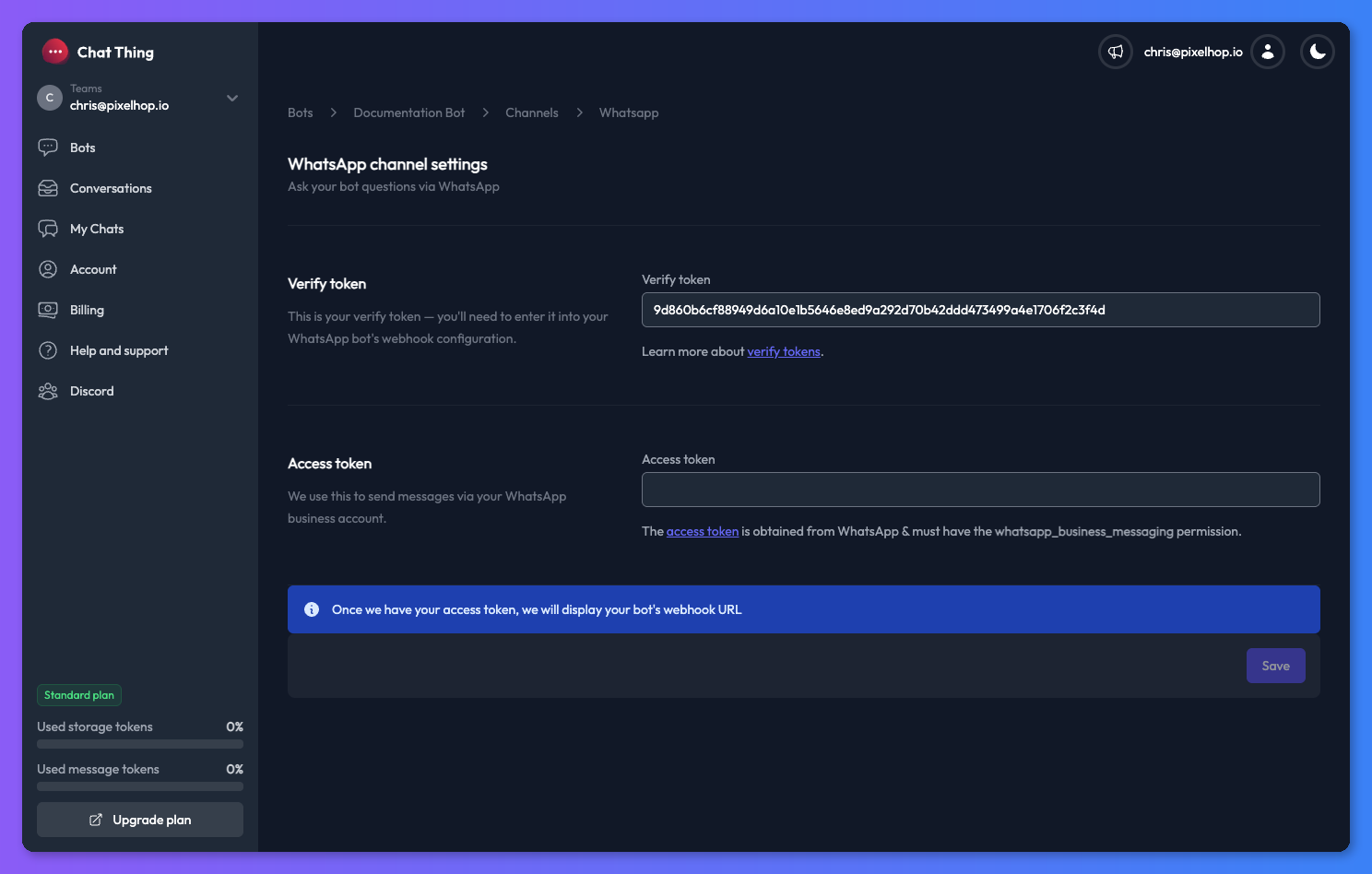
- After saving, the webhook URL will appear. You'll need both this URL and the verify token shown above it when configuring the webhook in Meta in the next steps.
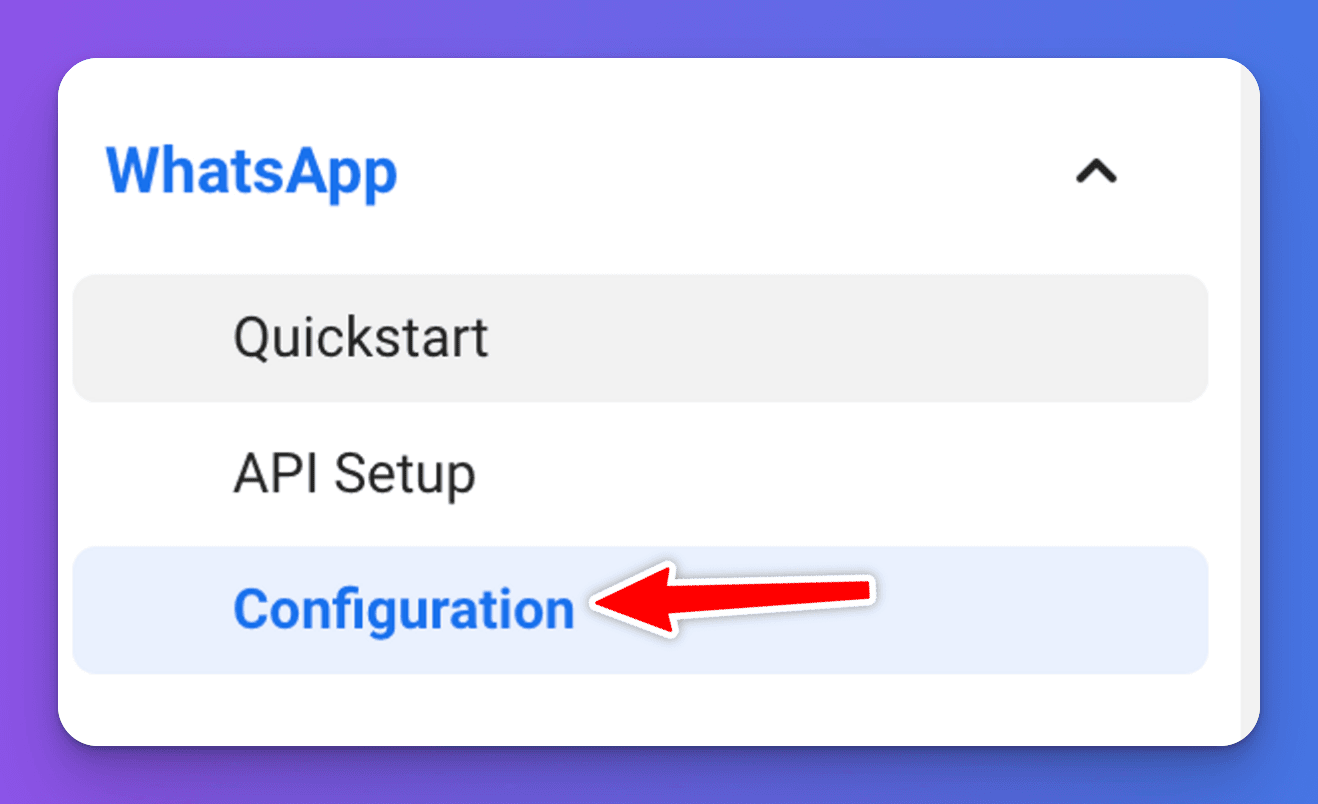
- Go back to the Meta developers site. Click the "Configuration" link under "WhatsApp" in the sidebar.
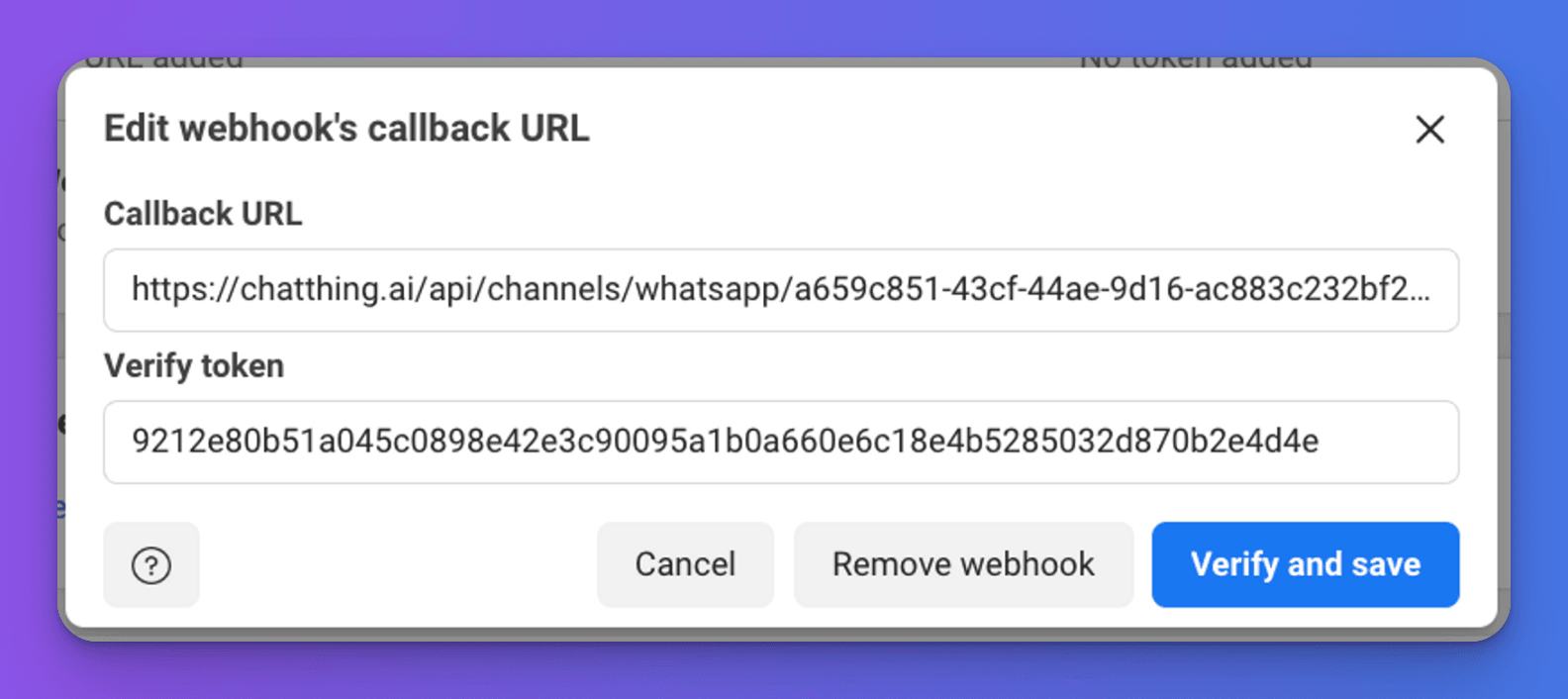
- Next, you need to click the "Edit" button and copy the callback URL and verify token from the WhatsApp channel settings in Chat Thing. Then, click "Verify" and save. If you've completed these steps correctly, verification should complete.
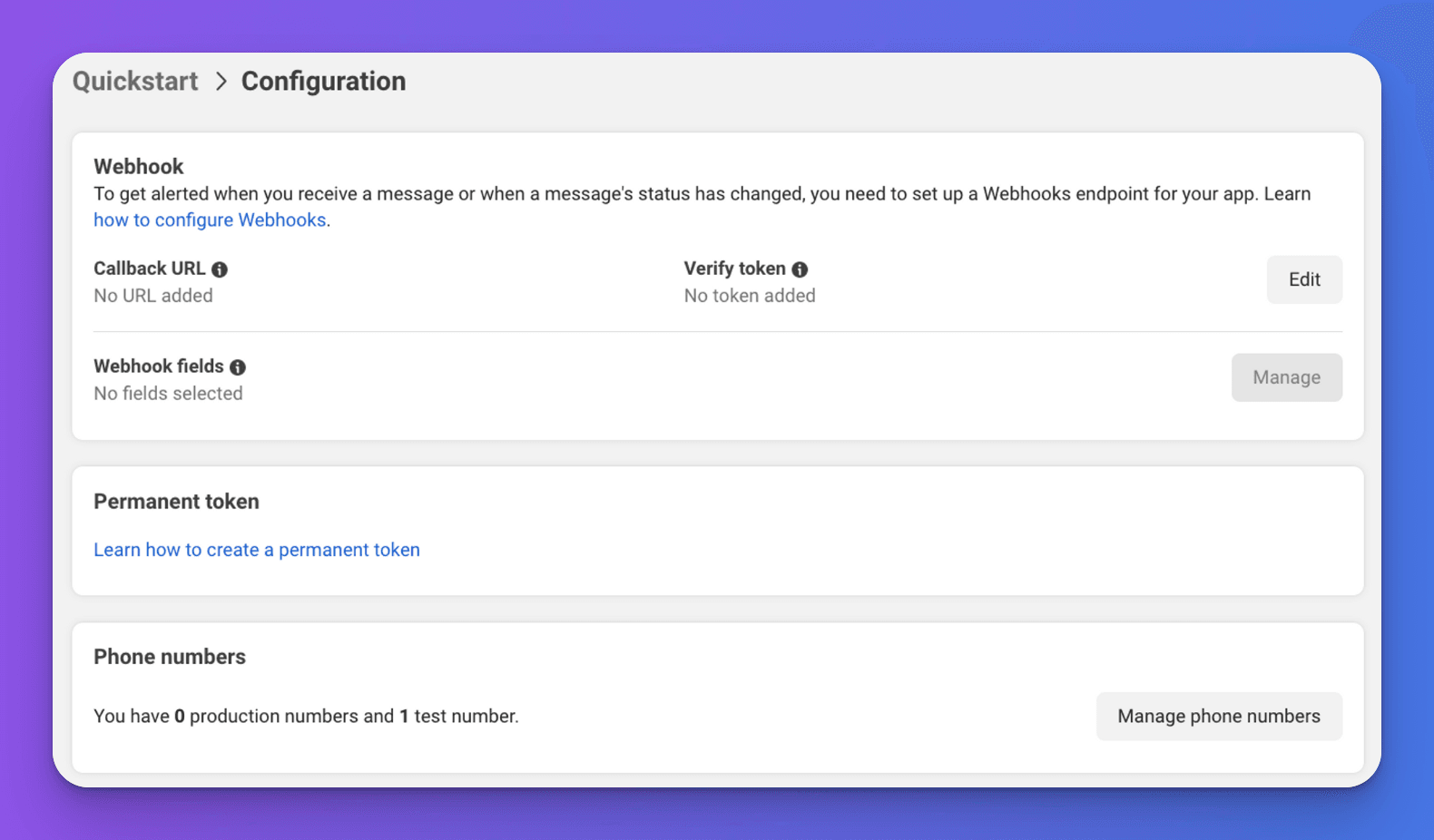
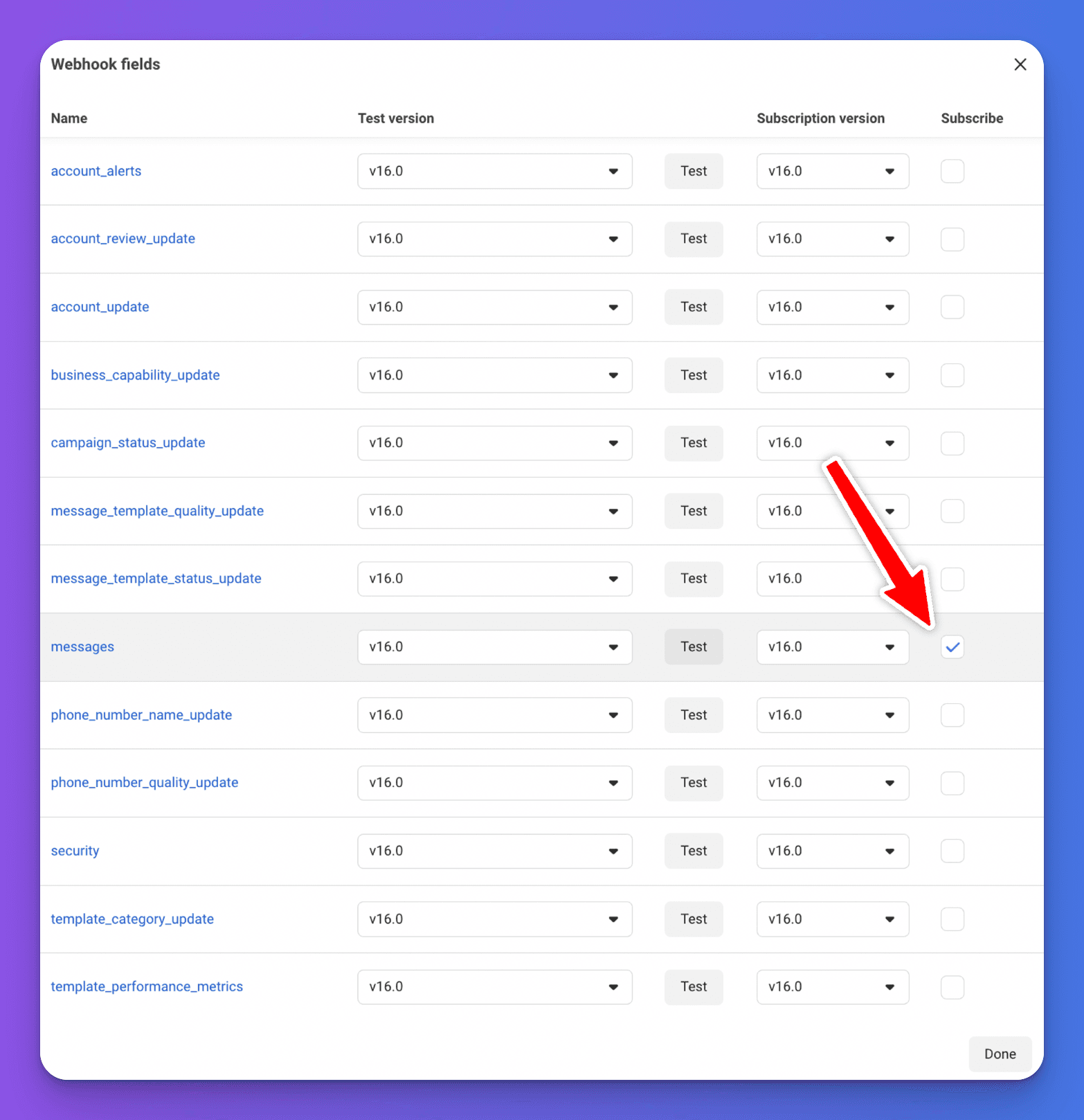
- Next, you'll need to configure the fields for your webhook by clicking the "Manage" button next to Webhook fields. In order for your bot to receive messages, you'll need to subscribe to "messages" events by ticking the "Subscribe" checkbox on the messages row.
When you click "Done", you should see "messages" listed under Webhook fields as shown in the screenshot.

- Now you should be ready to test your bot. Make sure you've added your phone number as a recipient phone number and that your business account has a test phone number set up.
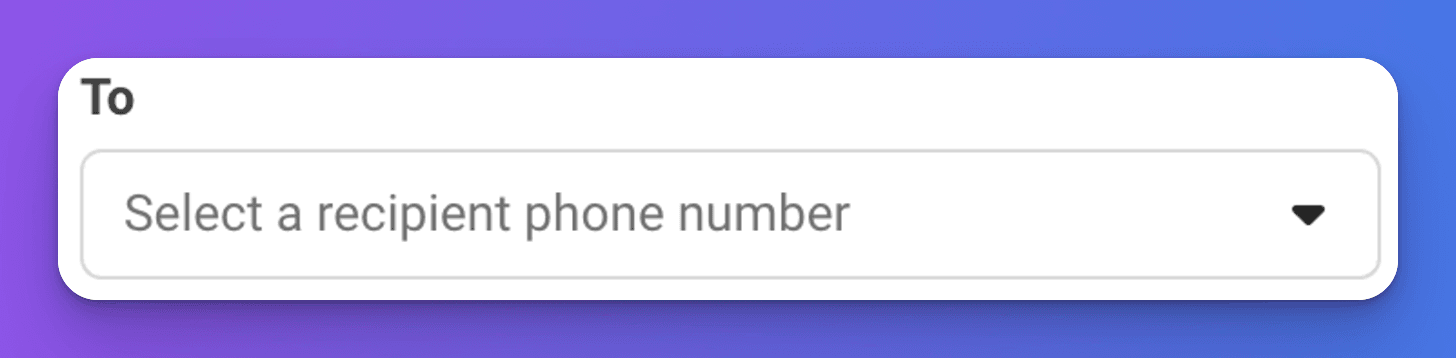
Go back to the API setup page and click the "To" field in the "Send and receive messages" section. Then click "Manage phone number list".
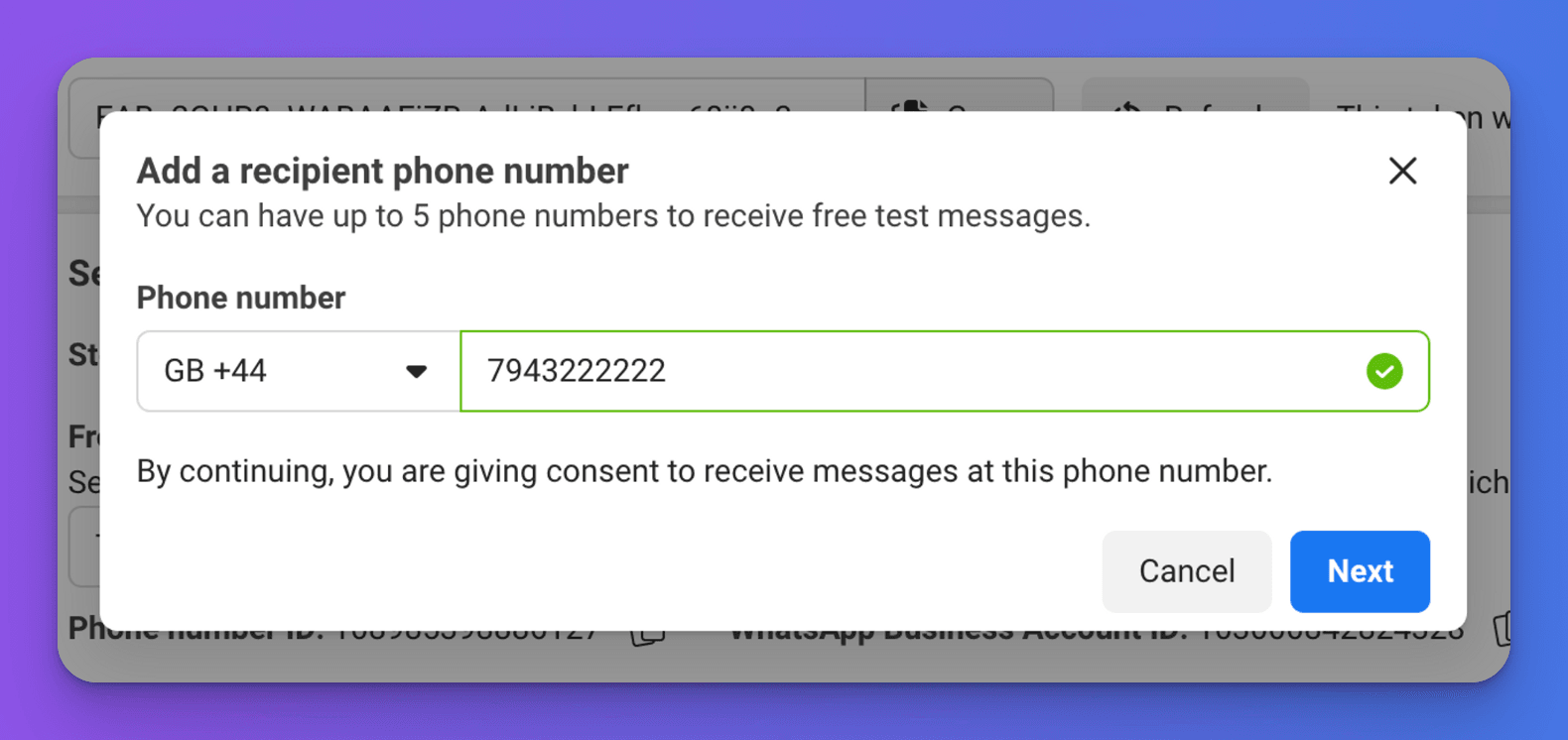
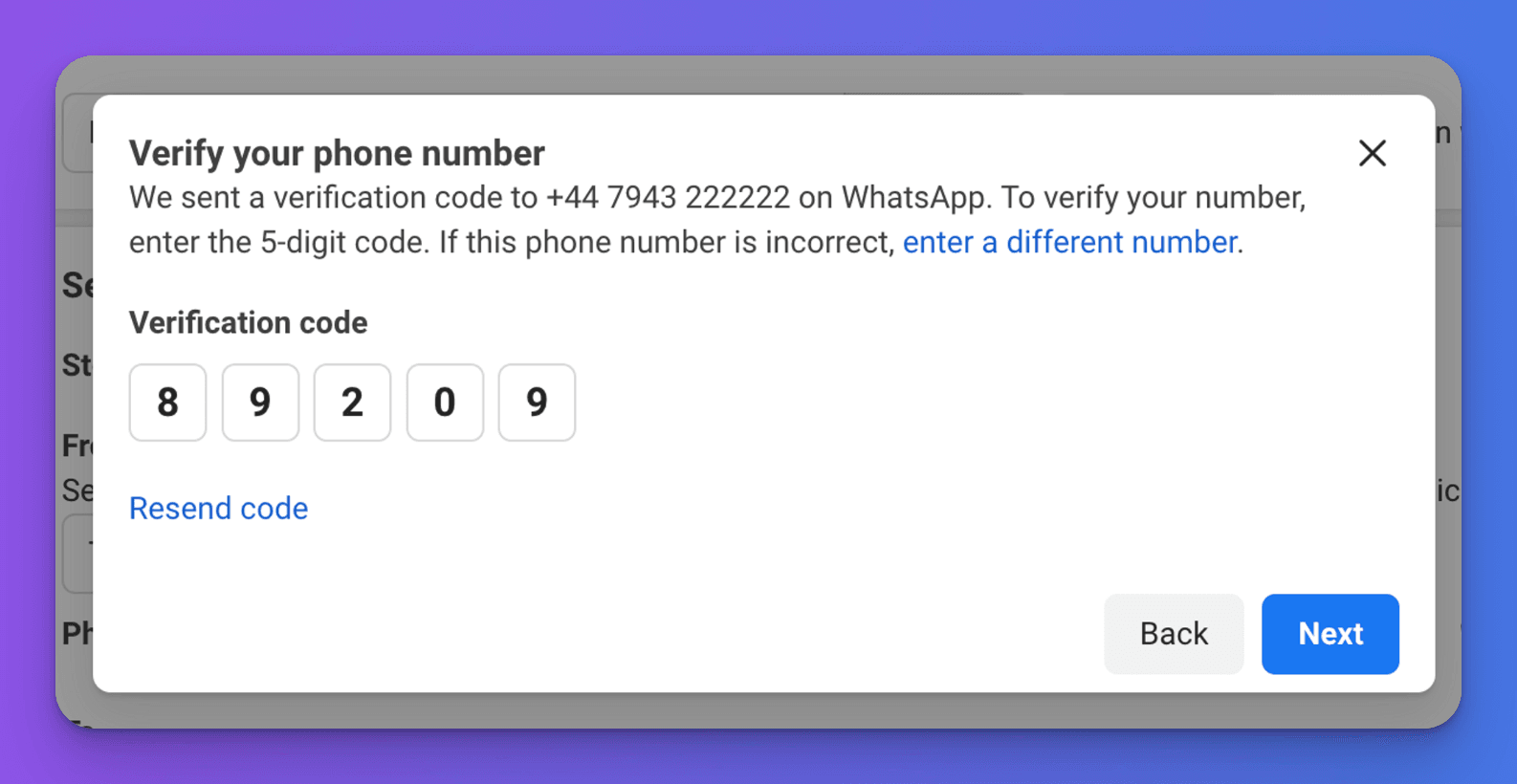
Add your phone number as a test number in the window that appears. You will be sent a verification code on WhatsApp — enter this code to confirm the number.
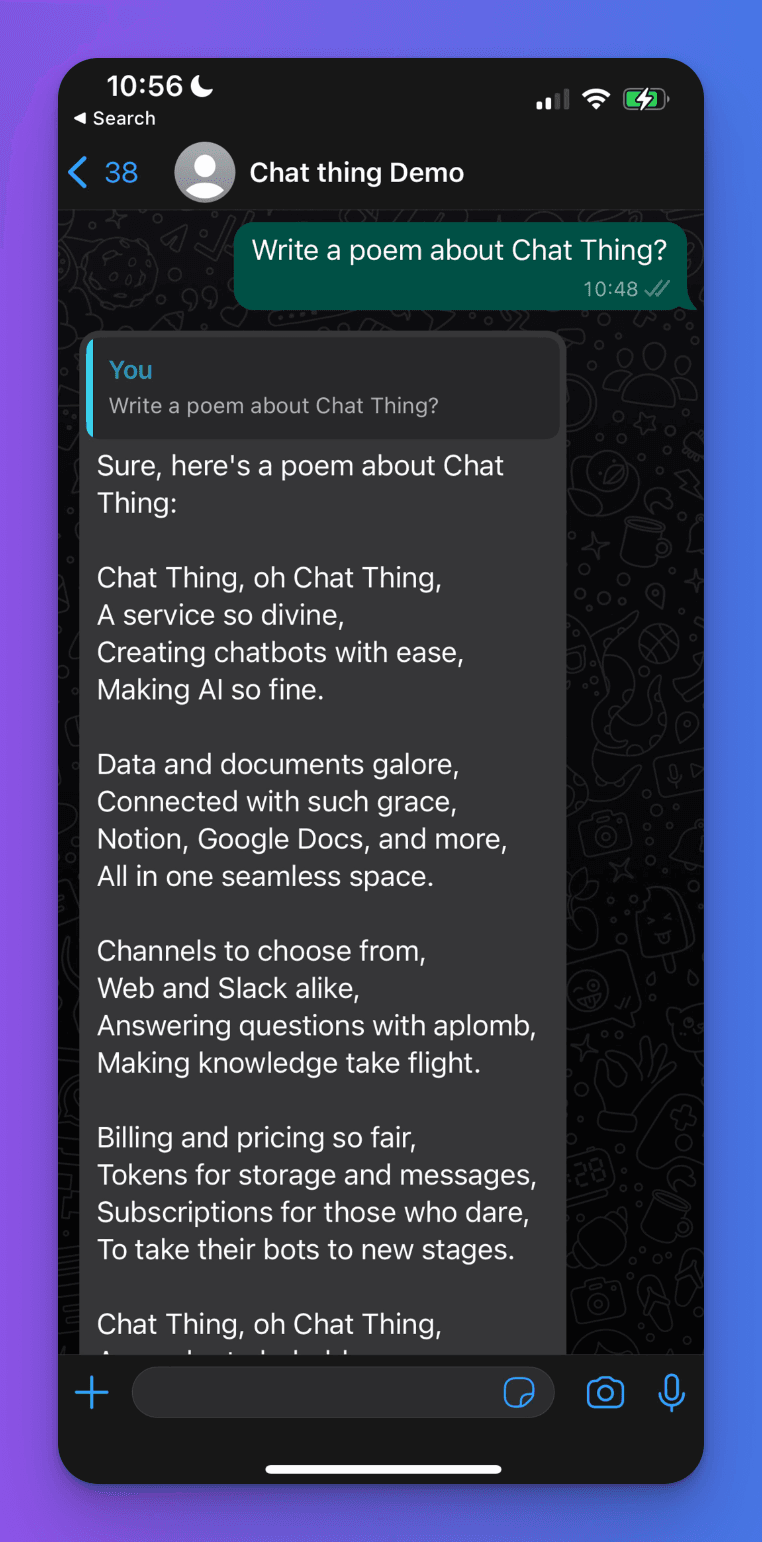
- To test your bot, simply send a message via WhatsApp to your business test phone number from one of your configured recipient phone numbers. After a short delay, your bot should respond. If it doesn't, it's most likely a configuration issue — double check that all settings are correct and that your access token hasn't expired.
Additional steps required for production integrations
Before you can make your app live, you will need to complete the following:
- Business phone number — you'll need a dedicated phone number for your WhatsApp bot.
- Permanent access token — the temporary token expires after 24 hours. See the section below for how to generate a permanent one.
- Business verification — Meta requires your business to be verified.
- App review — you'll need to put your application live and complete all relevant Meta policy steps.
Get a permanent access token
The access token you are currently using from the Meta dashboard expires in 24 hours. You will need a token that never expires if your bot is to work continuously.
Meta provides information on how to get a permanent token here: Get Started - WhatsApp Business Management API
- Sign into the Meta Business Suite.
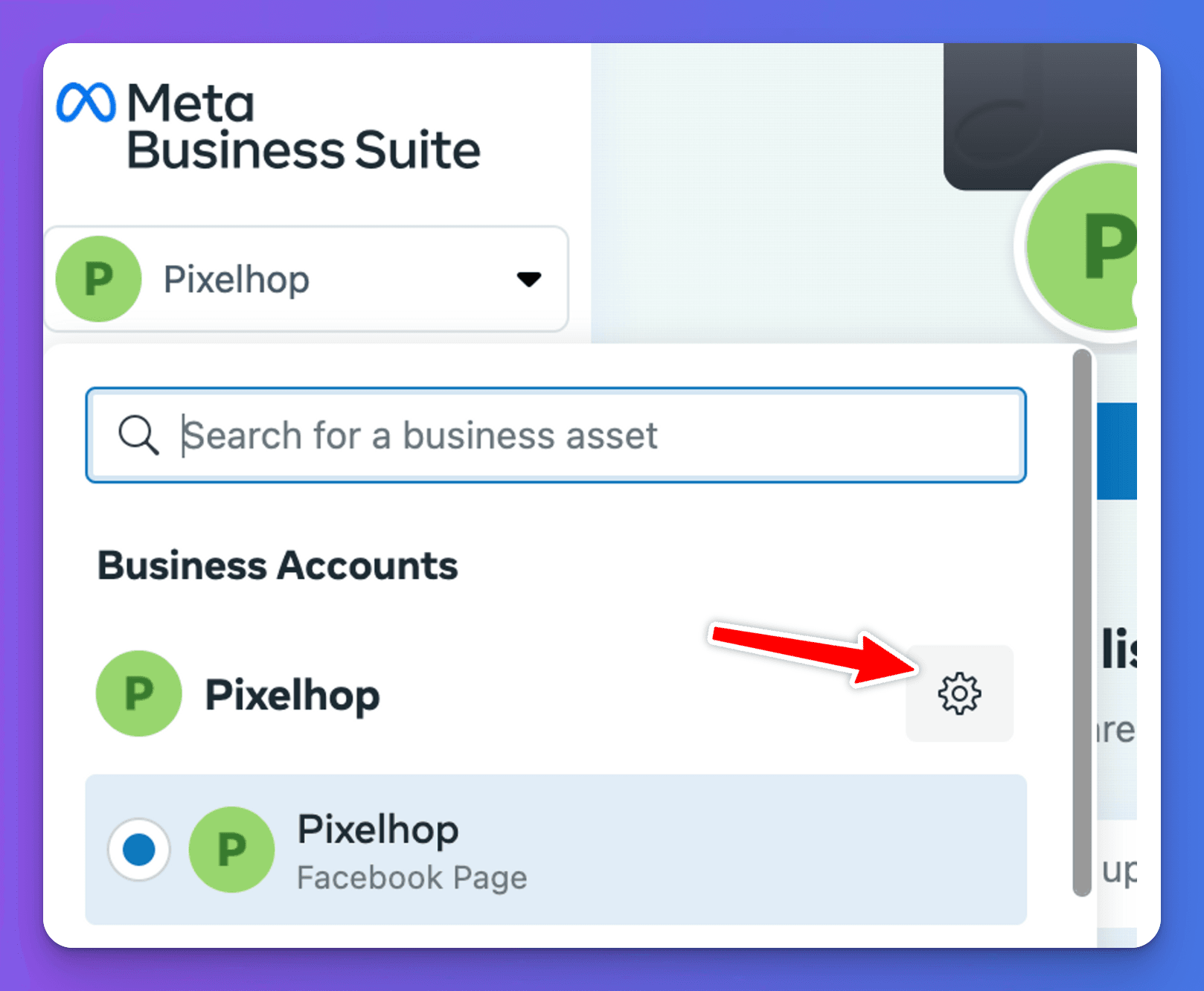
- Locate your business account in the top-left dropdown menu and click its Settings (gear) icon.
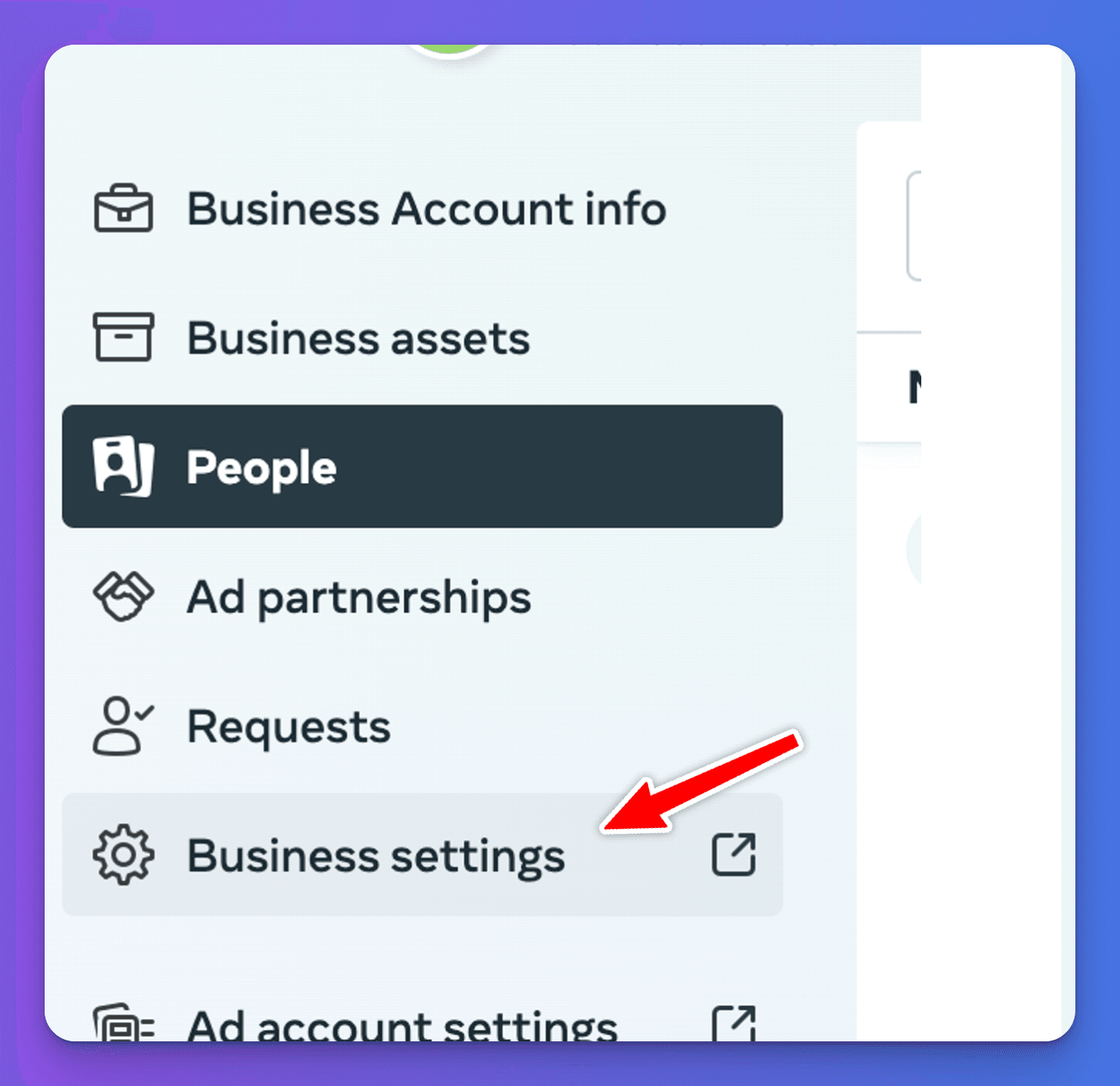
- Click Business settings.
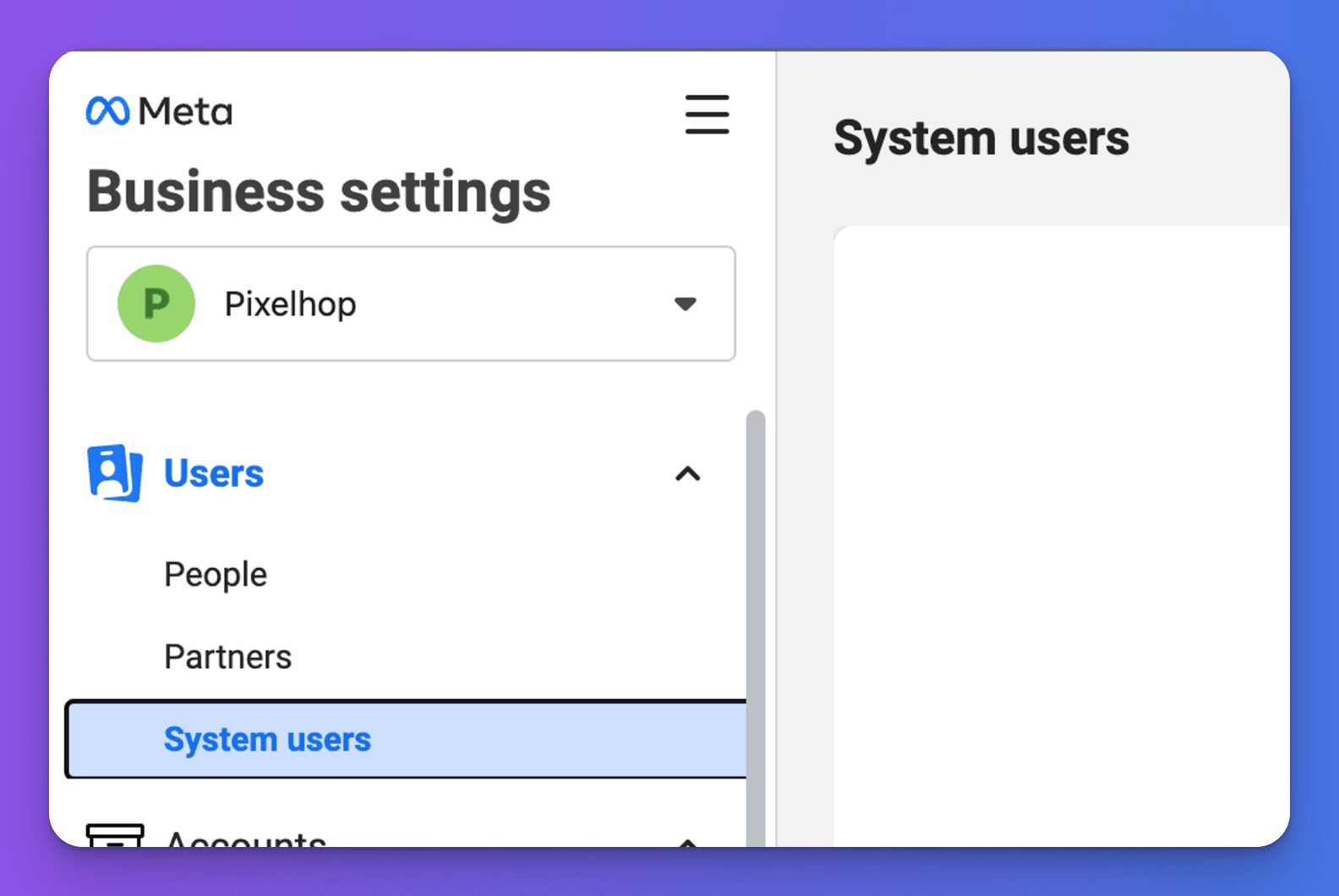
- Navigate to Users > System users.
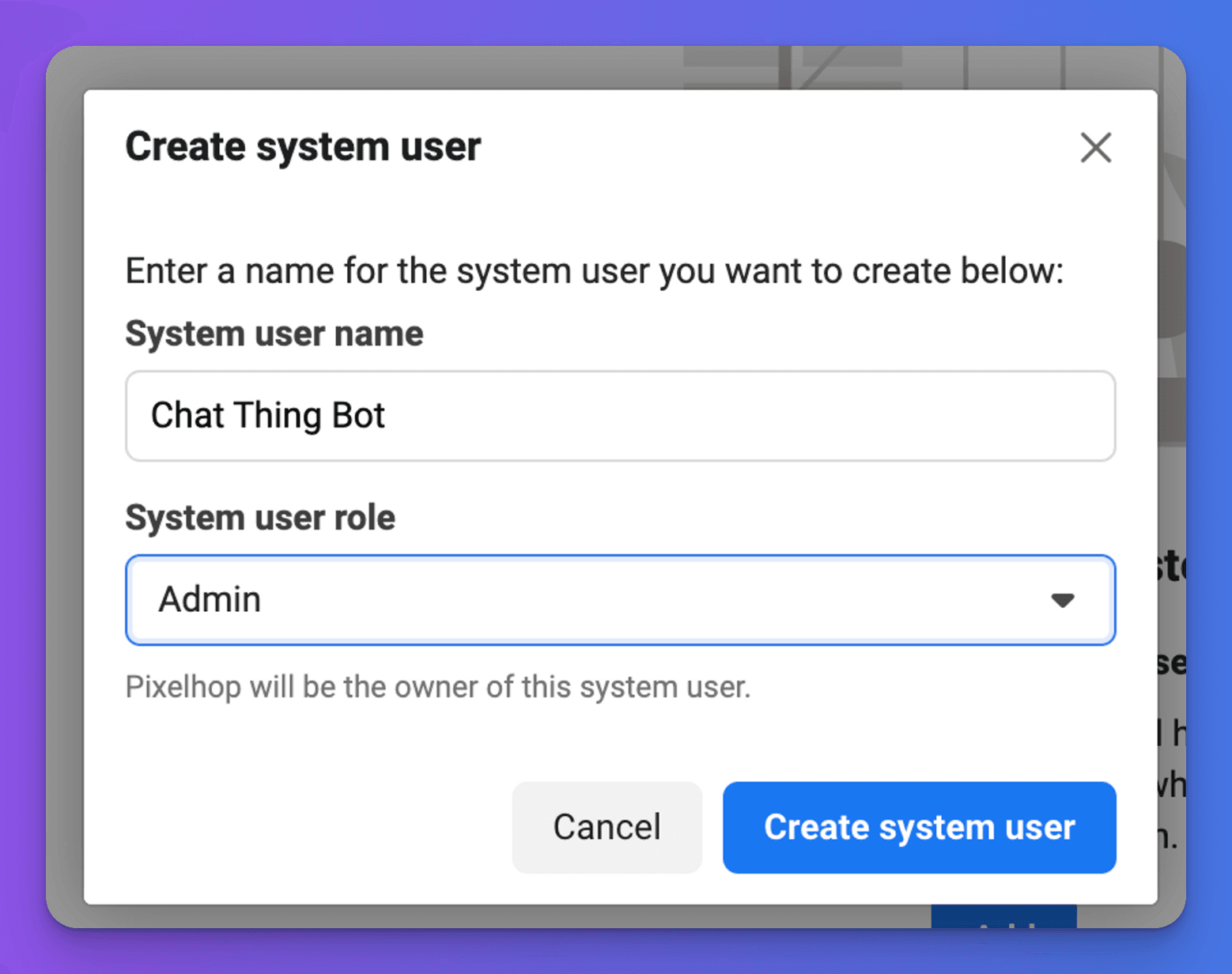
- If you don't have a system user already, you will need to create one. Click the "Add" button, then in the window give the user a name and choose "Admin" from the "System user role" dropdown.
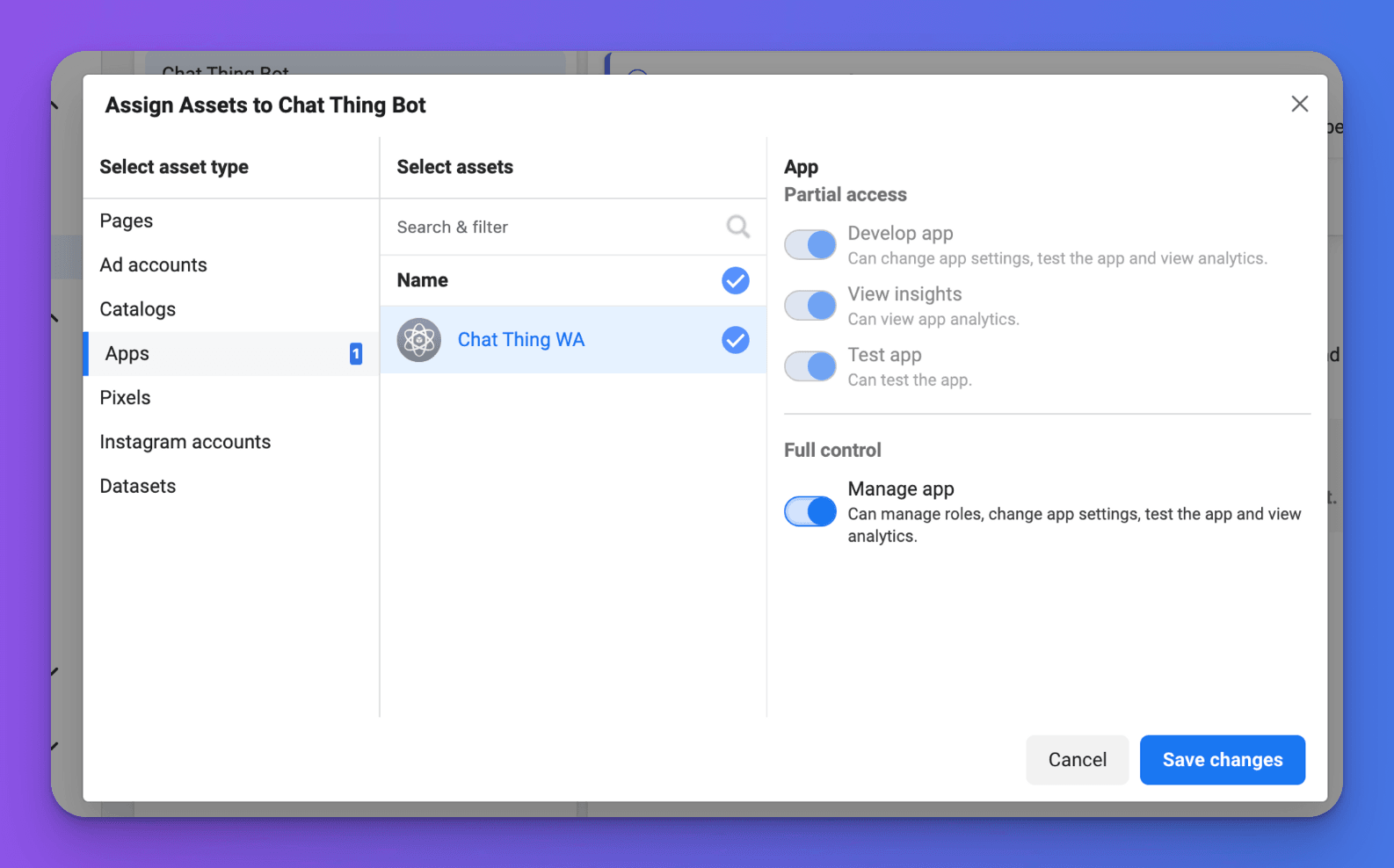
- We need to assign assets to the system user so that it has permission to manage your WhatsApp bot. Click the "Add assets" button.
Click "Apps" in the sidebar of the window that appears and select the app you created for your WhatsApp bot.
Click the "Manage app" toggle in the Full control section.
Click "Save changes".
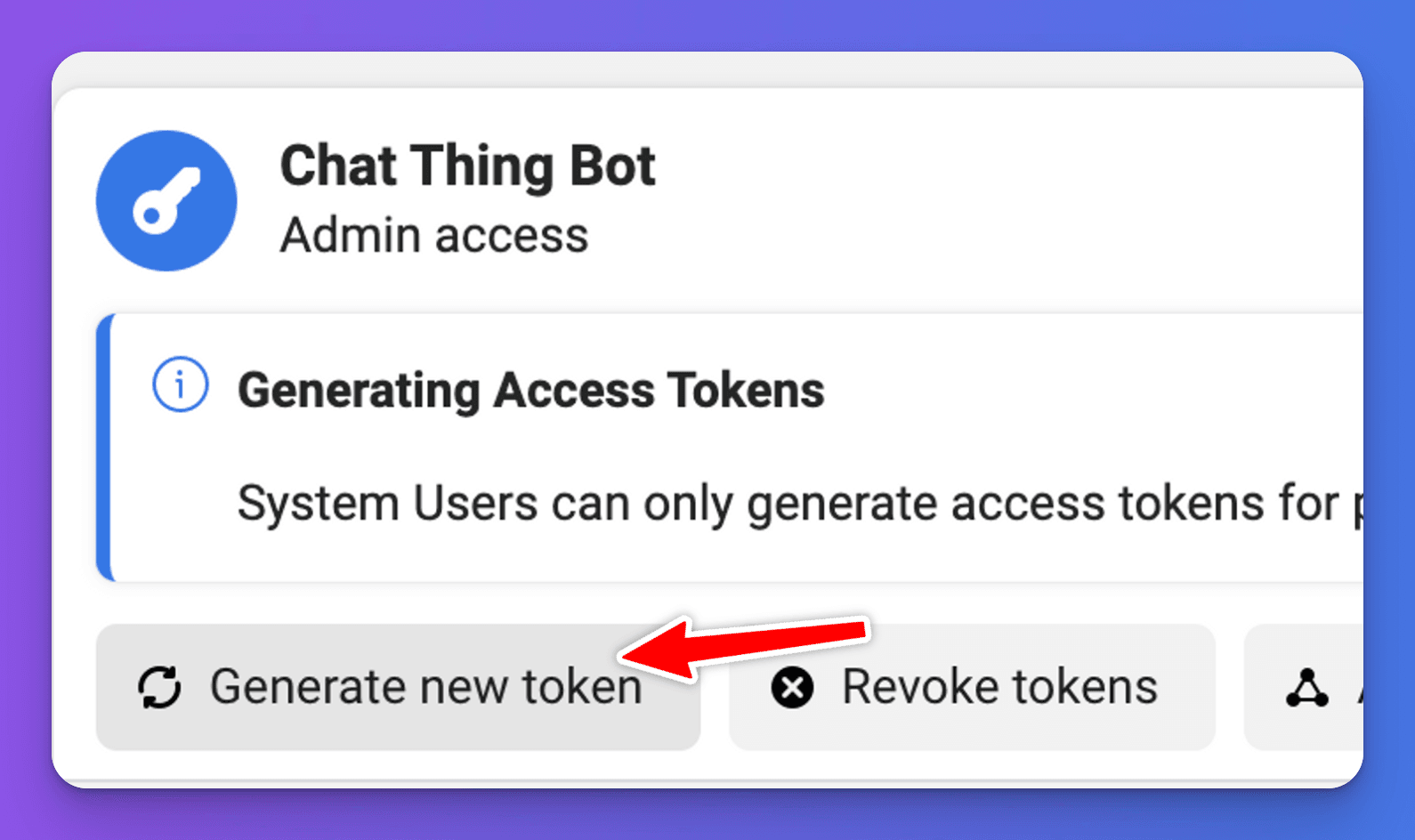
- Click the "Generate new token" button.
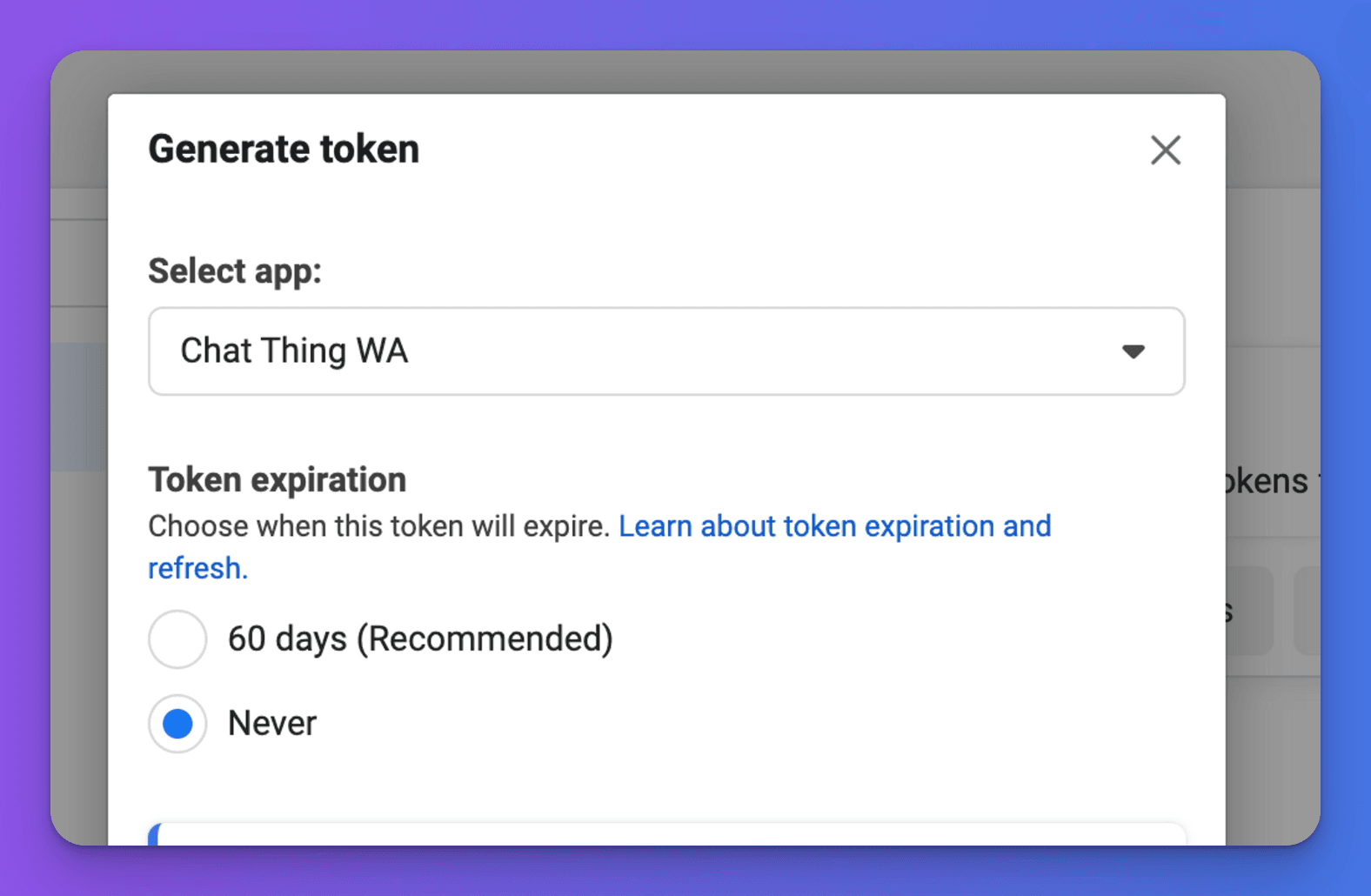
Select the WhatsApp bot app from the dropdown menu, and click "Never" in the "Token expiration" section.
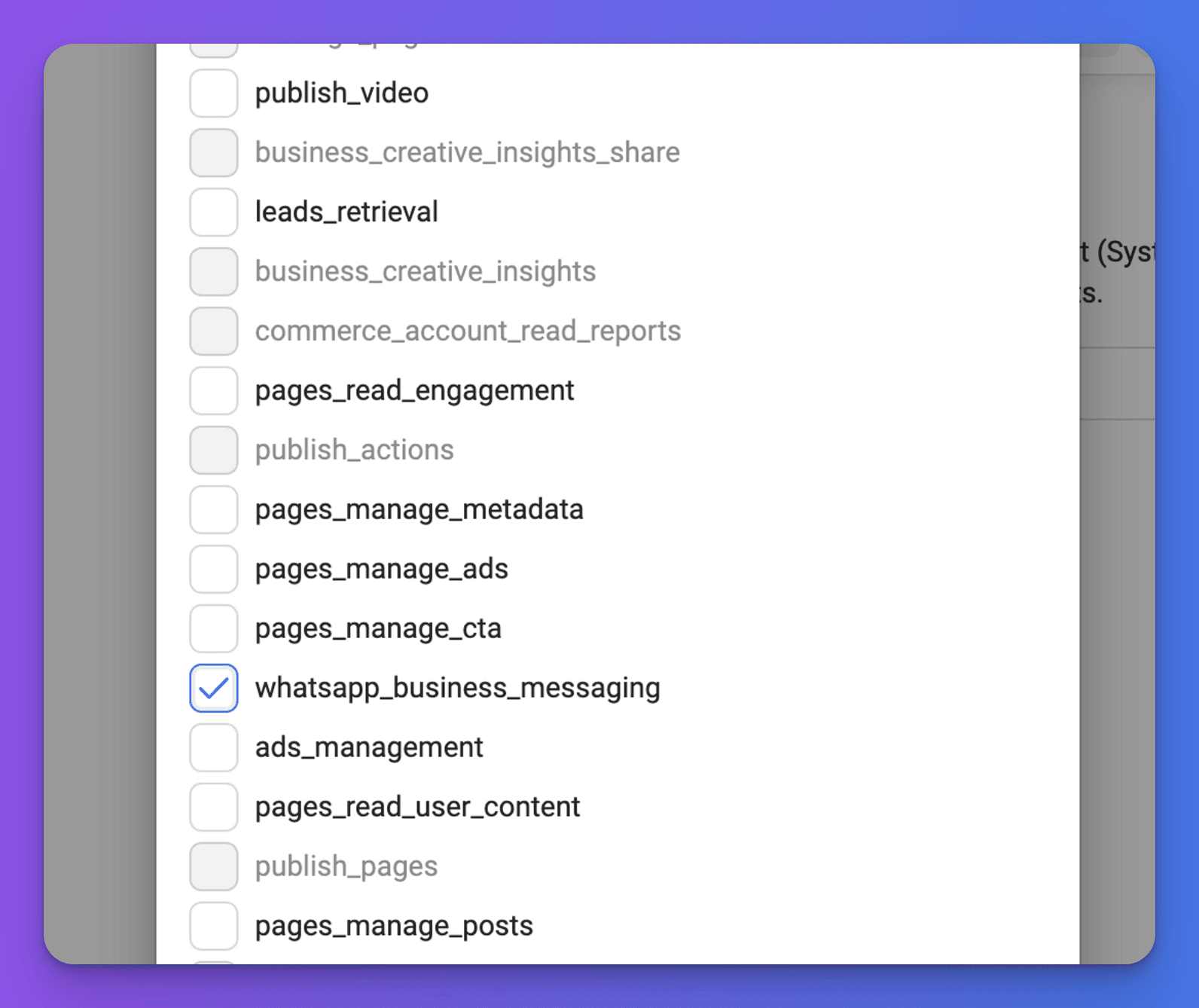
Finally, scroll down and select the "whatsapp_business_messaging" permission.
Click "Generate token".
- Copy the token that appears in the next window.
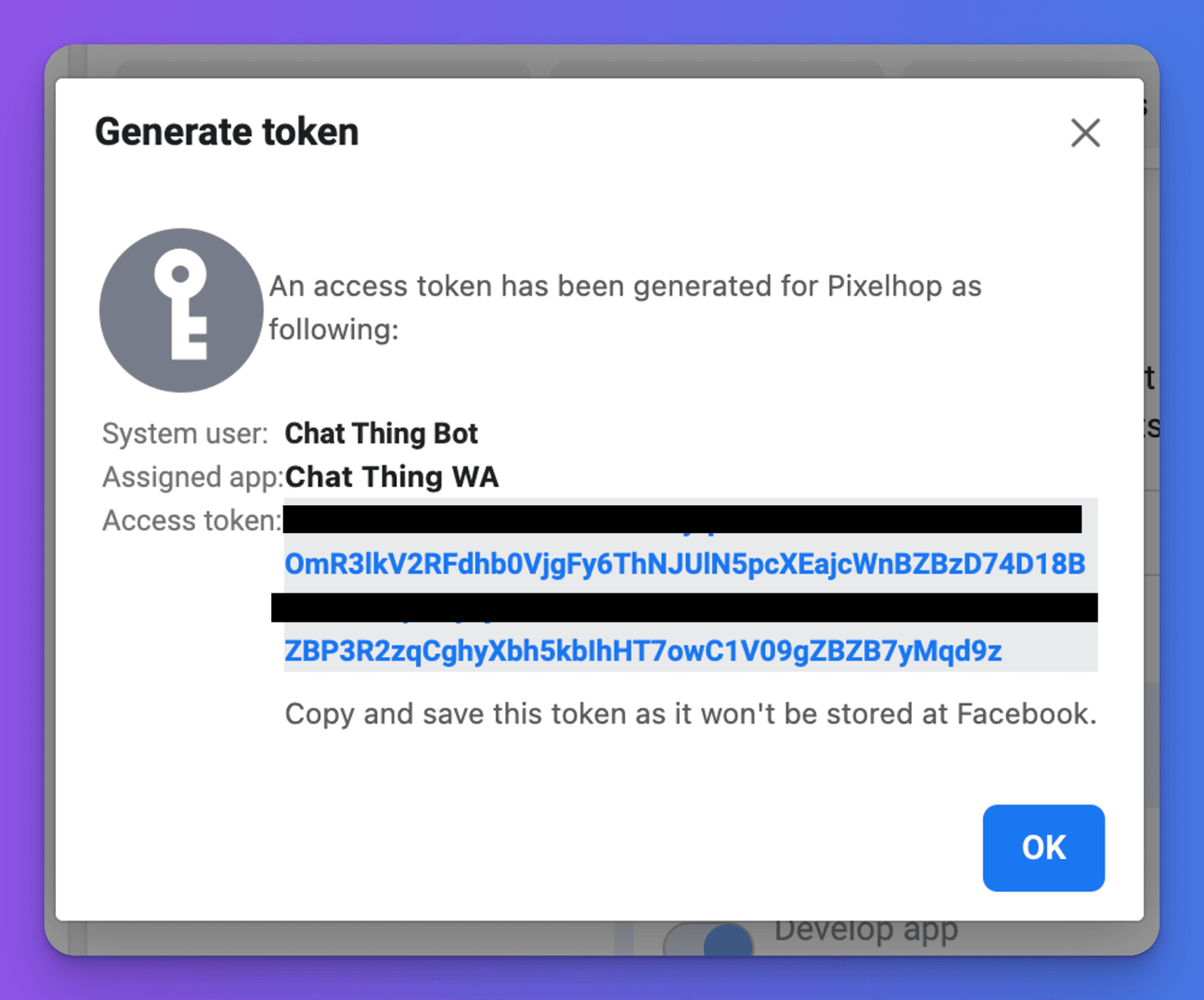
- Go back to the WhatsApp channel settings in Chat Thing, replace the old temporary access token with the new permanent one, and click "Update settings".
We recommend you test your bot again in WhatsApp to confirm everything is working.
Troubleshooting
- If you've used a temporary access token, be aware it only lasts 24 hours. Make sure to refresh it as needed during development, and upgrade to a permanent access token before releasing your bot.