Bots
Human takeover
Human takeover allows your team members to step into a live conversation, take control from the bot, chat directly with the customer, and then hand the conversation back when they're done.
This feature works exclusively with the web channel (including embedded widgets and iframes).
How it works
Human takeover follows a simple lifecycle:
- Escalation — A customer triggers the Talk to a Human power-up during a conversation. The bot collects the customer's email address and sends a notification to your team. The conversation state changes to Escalated.
- Claiming — A team member sees the escalated conversation in the Conversations dashboard and clicks Claim. The conversation state changes to Active and the customer sees a message that an agent has joined.
- Live chat — The team member chats directly with the customer in real-time. Bot responses are paused while the conversation is claimed.
- Hand back — When done, the team member clicks Hand back to bot to hand the conversation back to the bot. The conversation state changes to Resolved and the customer sees a message that the agent has left.
TODO: A flow diagram showing: Customer → Escalated → Agent Claims → Live Chat → Agent Hands Back → Back to Bot
Setting up human takeover
1. Enable human takeover on your bot
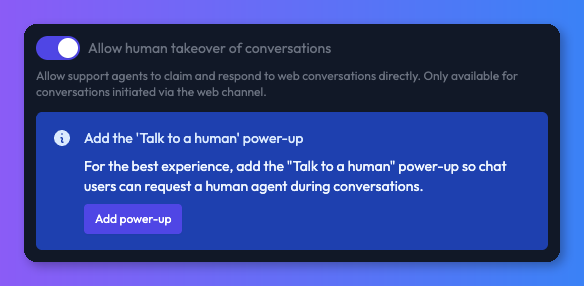
Navigate to your bot's settings page and enable the Human takeover toggle. This activates the feature for the bot's web channel.
If you haven't yet added the Talk to a Human power-up, a blue callout will appear below the toggle offering to add it for you — click Add power-up to add it without leaving settings.
2. Add the Talk to a Human power-up
Human takeover requires the Talk to a Human power-up to be configured on your bot. This power-up gives the bot the ability to escalate conversations when a customer requests human assistance.
- Go to your bot's Power-ups tab.
- Add the Talk to a Human power-up.
- Configure the notification email address (defaults to the team owner's email).
For detailed setup instructions, see Talk to a Human Power-up.
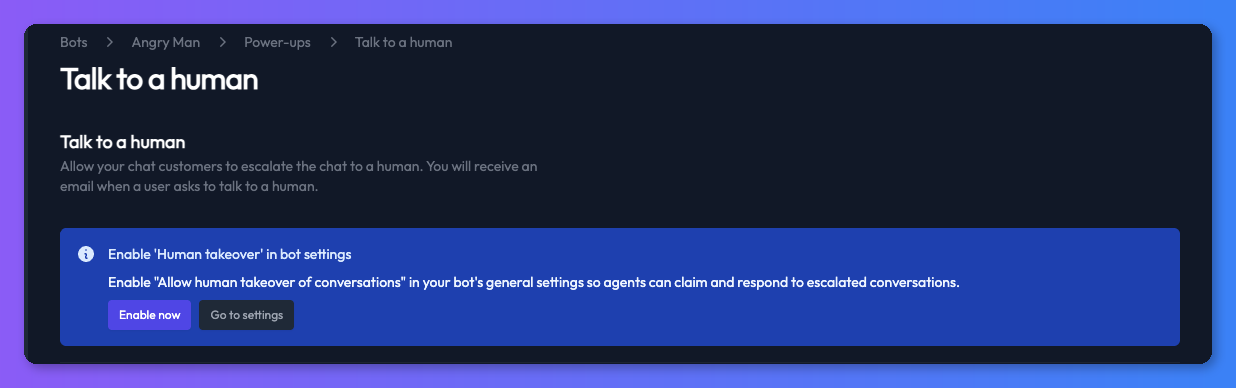
If human takeover is not yet enabled, the Talk to a Human power-up settings page will show a callout prompting you to enable it — click Enable now to activate it without leaving the power-up, or Go to settings to navigate to bot settings.
Managing conversations
The Conversations dashboard
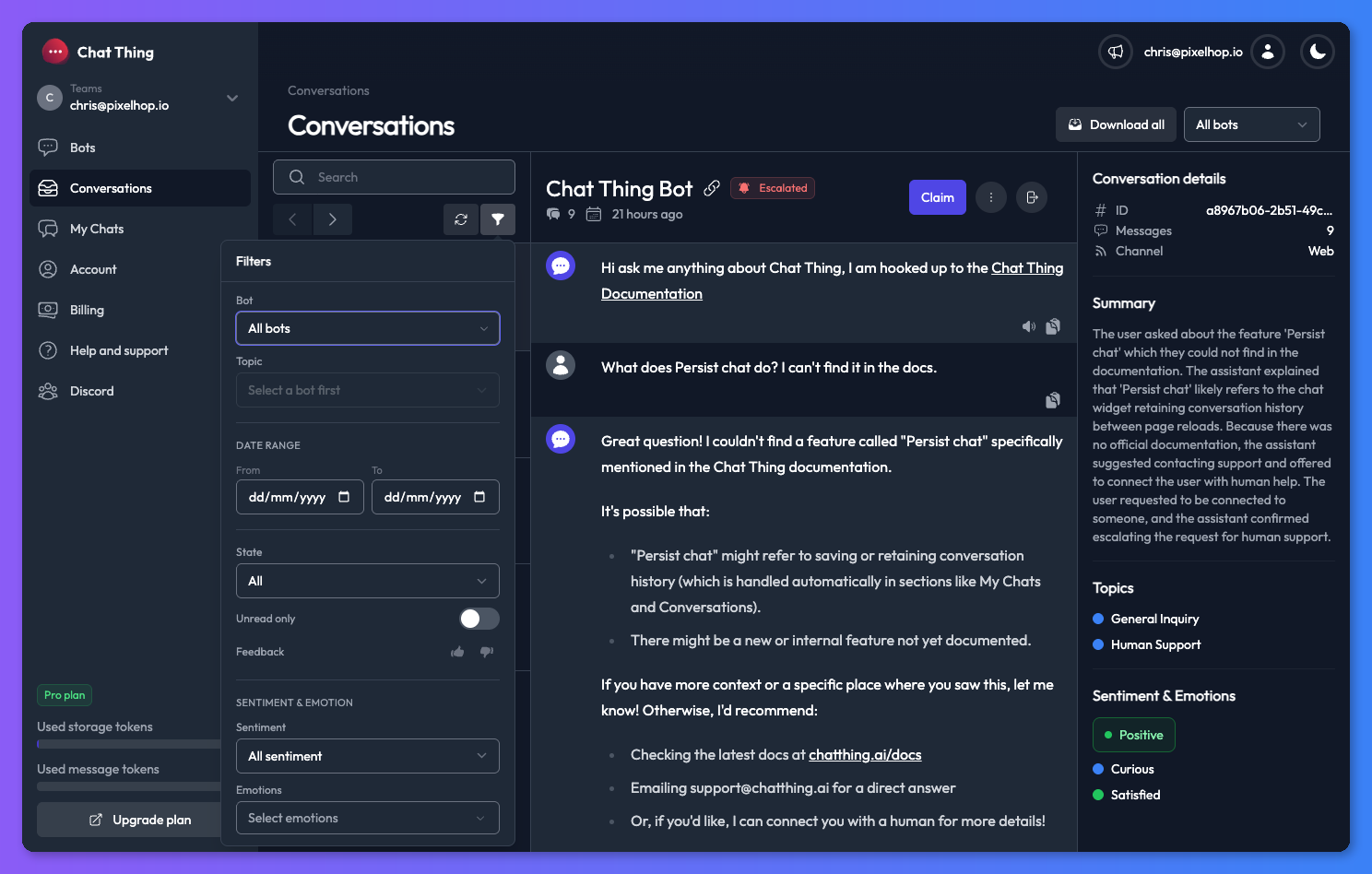
All escalated and active conversations appear in the Conversations page, accessible from the left sidebar. You can filter conversations by their state:
- Escalated — Waiting for a team member to claim
- Active — Currently being handled by a team member
- Resolved — Handed back to the bot
Claiming a conversation
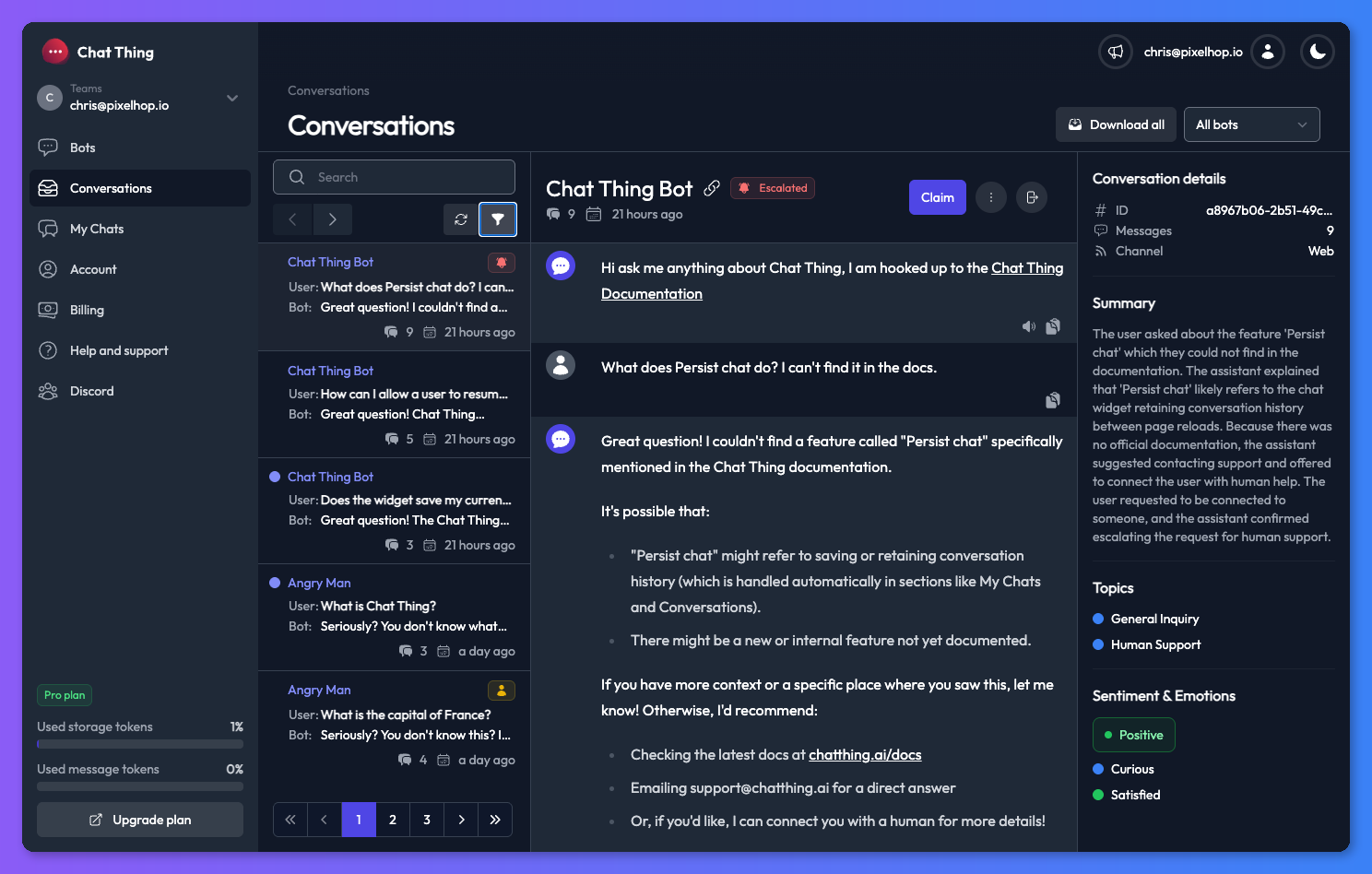
When a conversation is escalated, any team member with the appropriate role (owner, admin, or responder) can claim it:
- Navigate to Conversations and filter by Escalated state.
- Select the conversation you want to handle.
- Click the Claim button.
The customer will see a system message that an agent has joined the conversation. If another team member has already claimed it, you'll see a notification telling you who claimed it.
Chatting with the customer
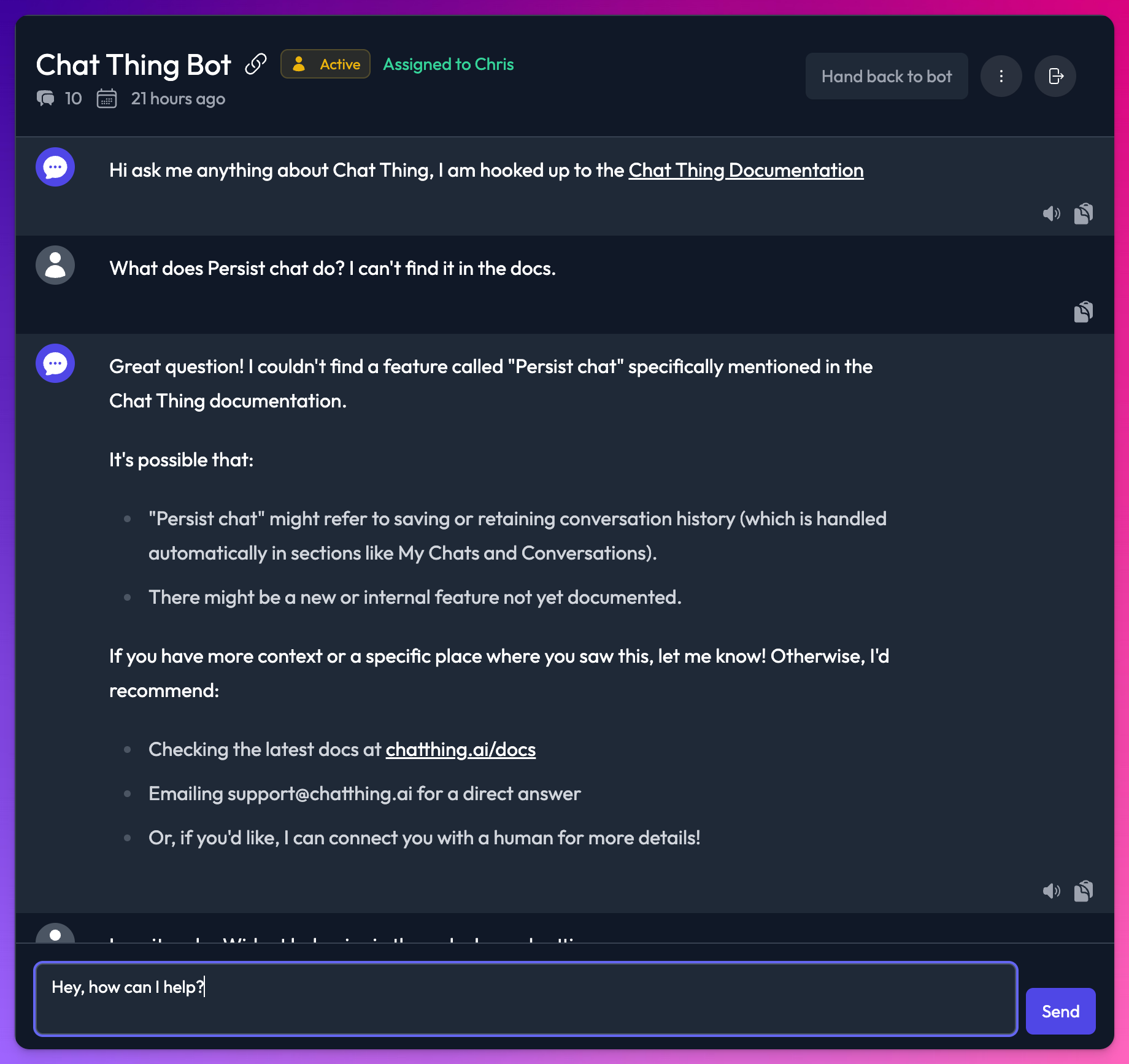
Once you've claimed a conversation, you can type messages directly to the customer using the message input at the bottom of the conversation view. Messages are delivered instantly.
While the conversation is claimed, the bot will not respond to the customer — all responses come from you.
Releasing a conversation
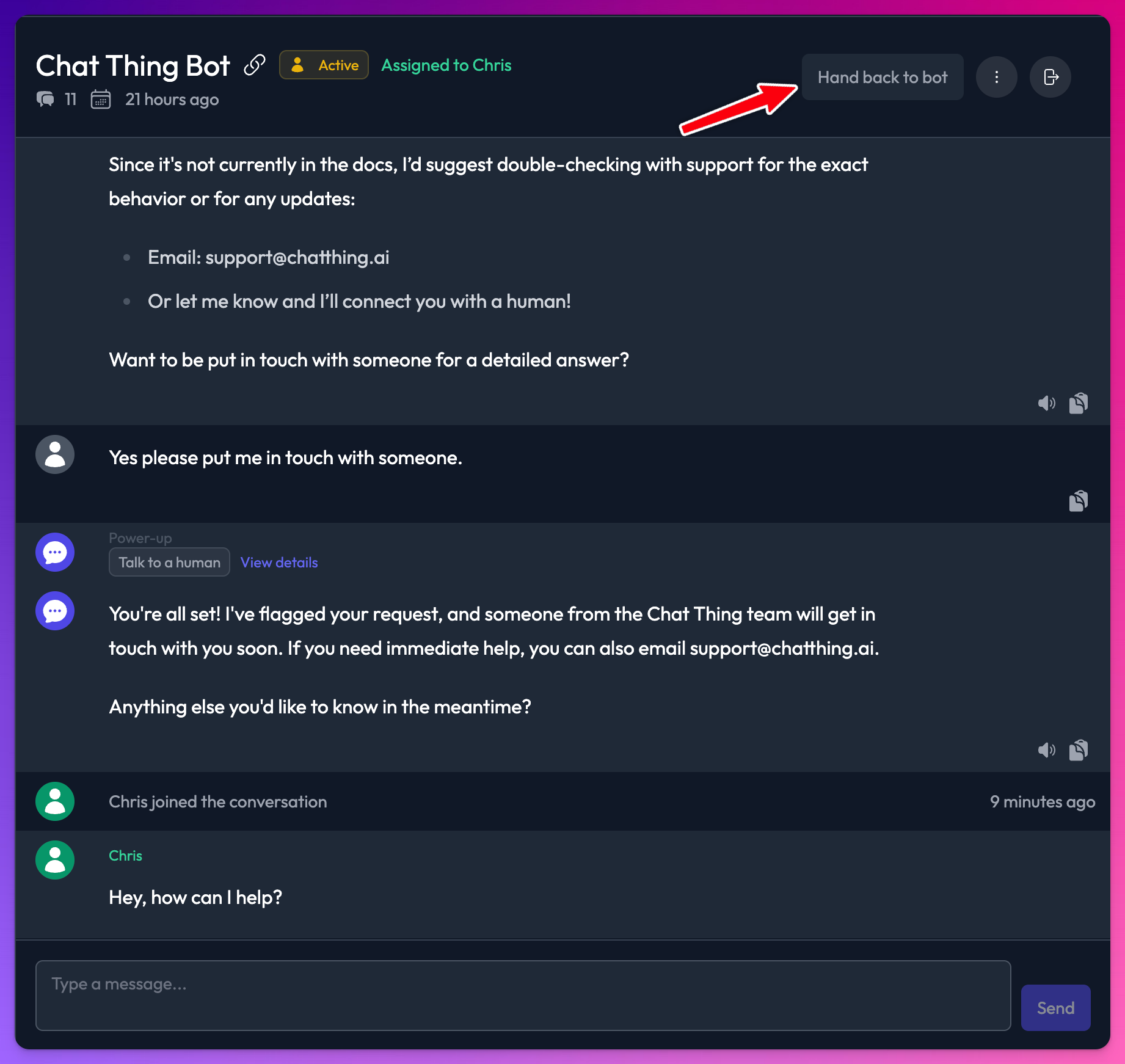
When you're done helping the customer, click the Hand back to bot button to hand the conversation back to the bot. The customer will see a system message that the agent has left, and the bot will resume responding.
Real-time updates
The Conversations dashboard updates automatically — no need to refresh. You'll see:
- New escalated conversations appear automatically
- State changes (escalated → active → resolved) update in real-time
- New messages from customers appear instantly when viewing a claimed conversation
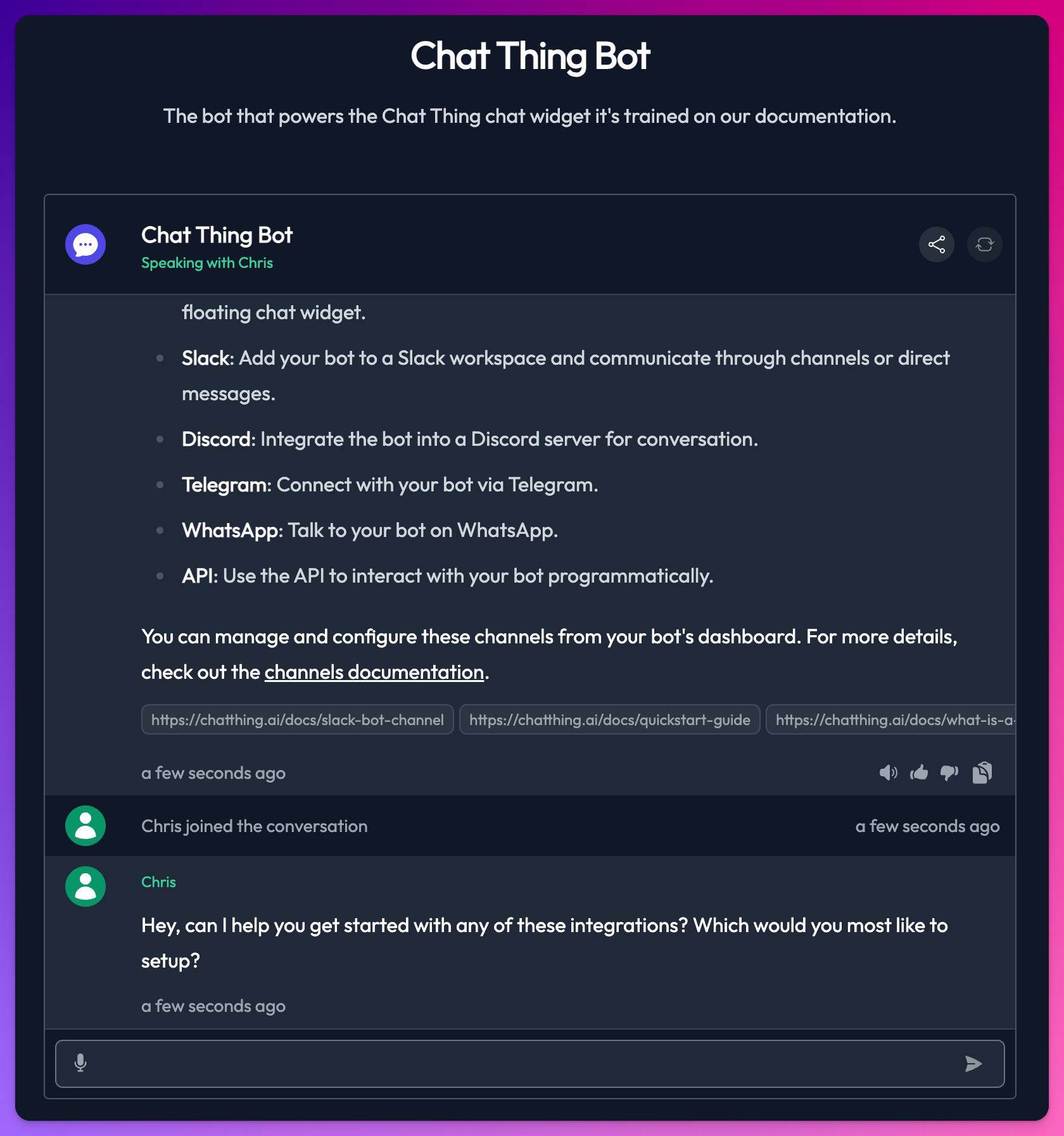
On the customer's side, the chat widget also updates in real-time:
- A visual indicator shows when a human agent has joined
- The agent's name is displayed during the takeover
- Messages from the agent appear instantly
Webhooks
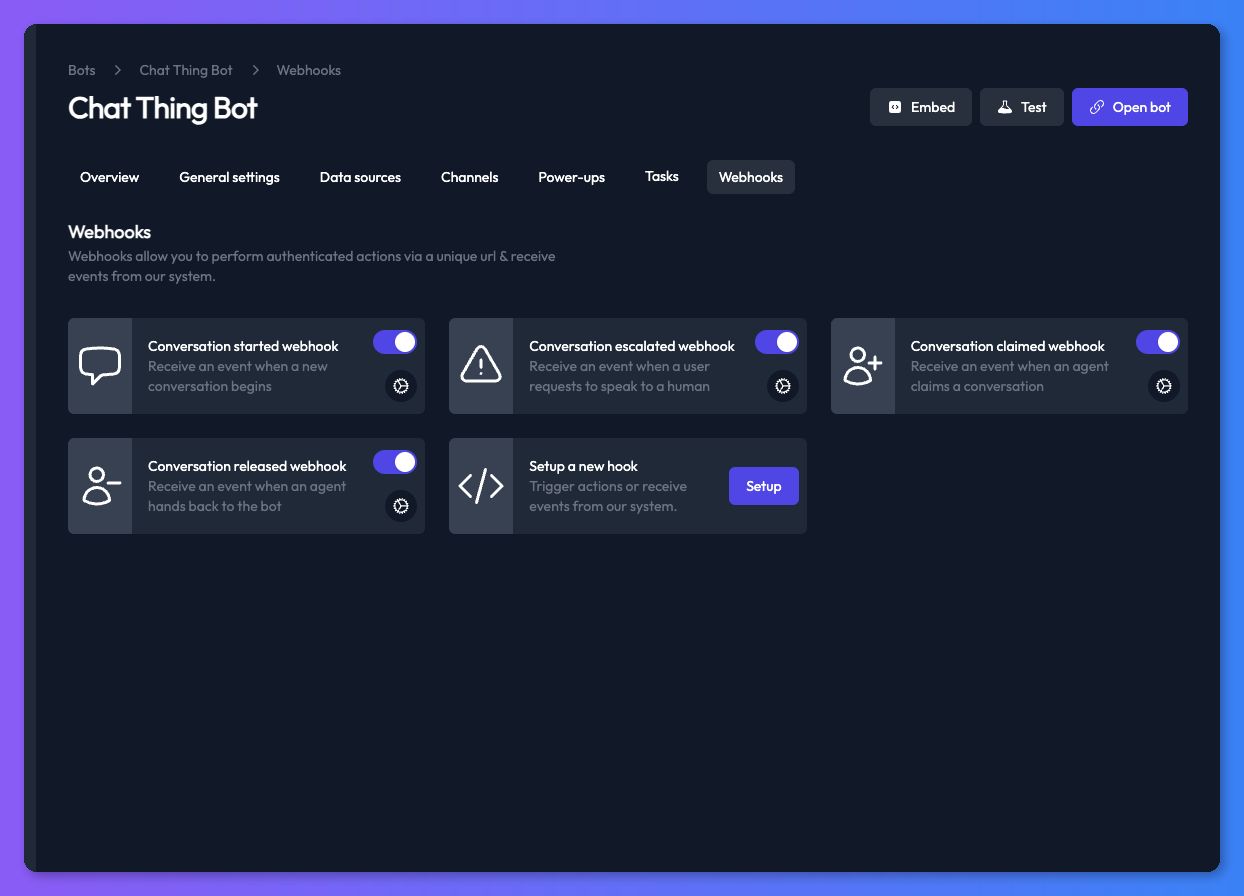
You can set up webhooks to be notified of conversation lifecycle events. This is useful for integrating with CRMs, ticketing systems, or monitoring tools.
The following conversation webhooks are available:
| Webhook | Fires when |
|---|---|
| Conversation started | A new conversation is created |
| Conversation escalated | A customer requests a human agent |
| Conversation claimed | A team member claims a conversation |
| Conversation released | A team member hands back a conversation |
For full payload details and setup instructions, see Webhooks — Conversation webhooks.
Requirements and limitations
- Web channel only — Human takeover is currently available for the web channel (direct bot URL, embedded widget, and iframe). Other channels (Slack, Discord, Telegram, etc.) are not supported.
- Talk to a Human power-up required — The escalation flow is triggered by the Talk to a Human power-up. Without it, there is no way for a customer to request a human agent.
- One agent per conversation — Only one team member can claim a conversation at a time. If another agent tries to claim an already-claimed conversation, they'll be notified.
- Team roles — Only team members with the owner, admin, or responder role can claim and respond to conversations.