Power-ups
Display Cards Power-up
Display Cards overview
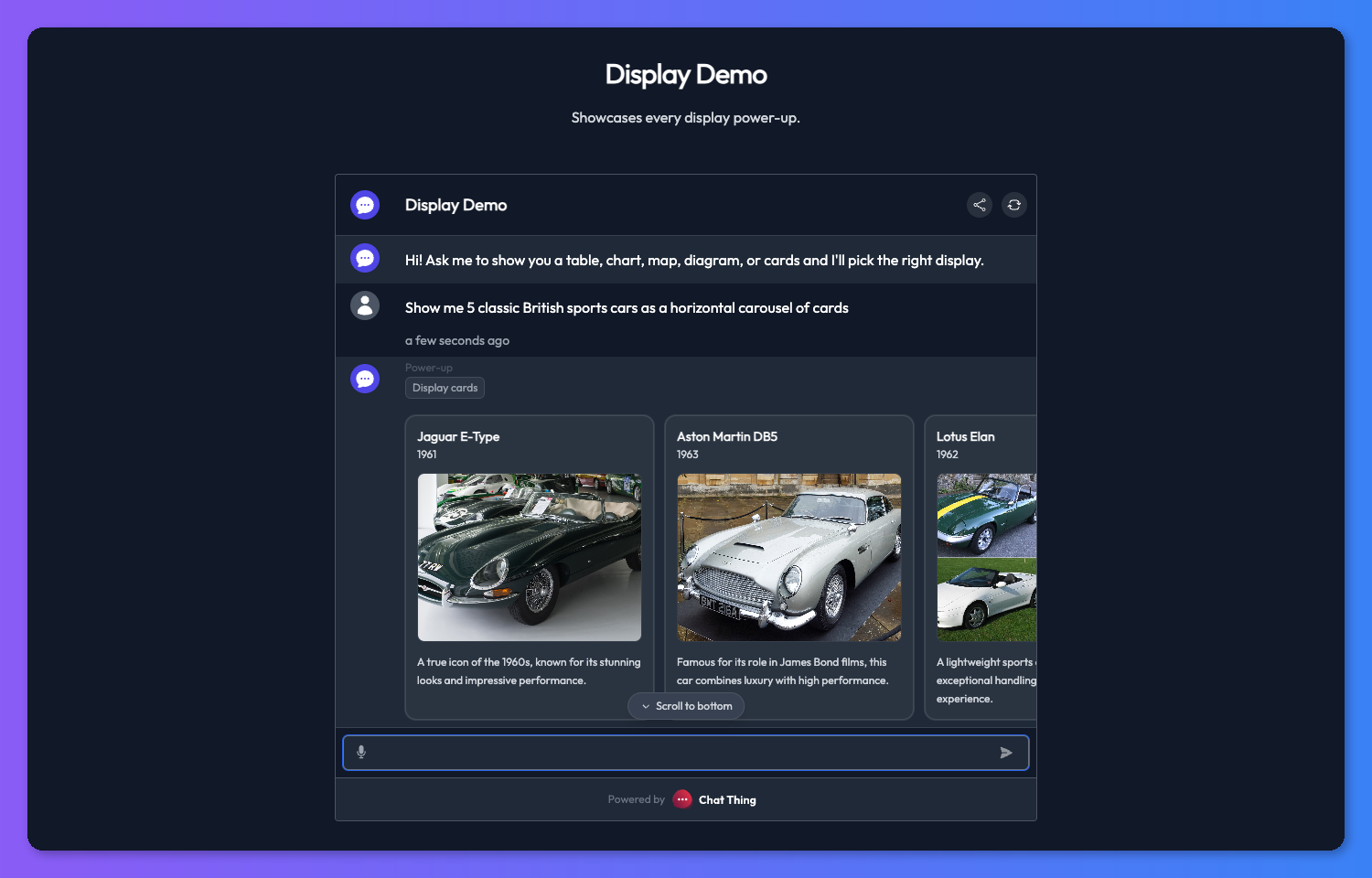
The Display Cards power-up gives your bot a way to answer with rich visual cards instead of a plain text message. When your bot wants to show a list of items - products, places, people, options - it can reach for this power-up and hand back a set of cards that the chat interface renders as a carousel or a stacked list.
Unlike a data source or an API power-up, Display Cards does not fetch anything on its own. The bot decides what the cards should contain based on what it already knows from the conversation, your data sources, and any other tool results, then calls Display Cards to actually show them.
Example use-cases
Cards shine any time a plain text list would feel cramped or hard to scan. A few ideas to get you thinking:
- Product catalogues - show the top matching products with a photo, price, and link to buy.
- Property listings - present holiday rentals or real estate results with a hero image and key details.
- FAQ snippets - surface the most relevant answers as tappable cards rather than a wall of text.
- Team members - introduce the people behind a company with a photo, role, and short bio.
- Menu items - let a restaurant bot show dishes with images, prices, and short descriptions.
Setting up Display Cards
You add Display Cards from the power-up gallery like any other power-up. If you are new to power-ups, start with the Power-up basics page for a walkthrough of adding and managing them.
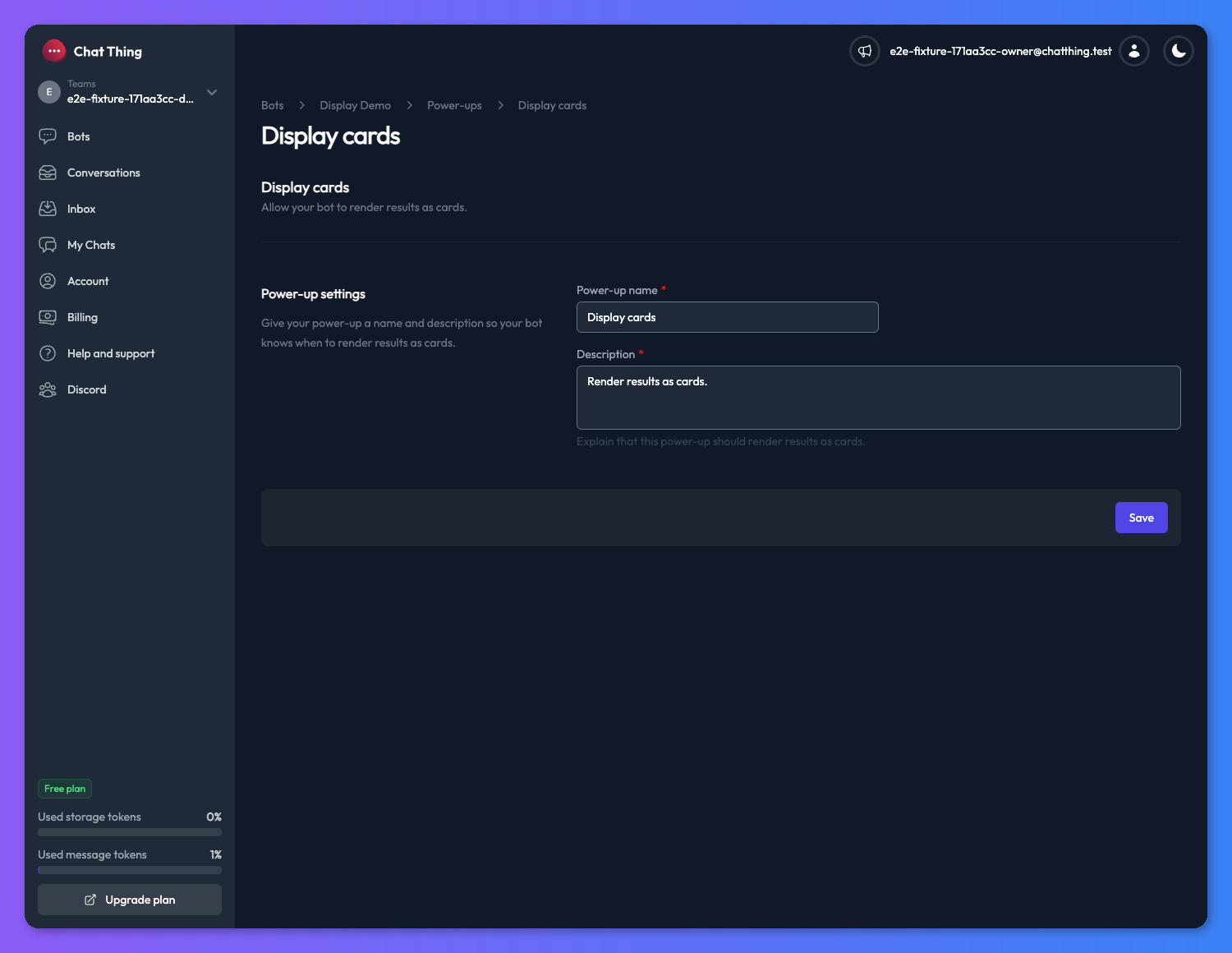
Setting a name and description
As with any power-up, the name and description matter. The description is the most important setting - it is what your bot reads to decide when to show cards instead of replying in plain text. Treat it like a mini-prompt.
For example, a description like "Use this to show products whenever the user is browsing the shop or comparing items" will nudge the bot to reach for cards on shopping-style questions and stick to plain text on everything else.
Card layout
Display Cards supports two layouts:
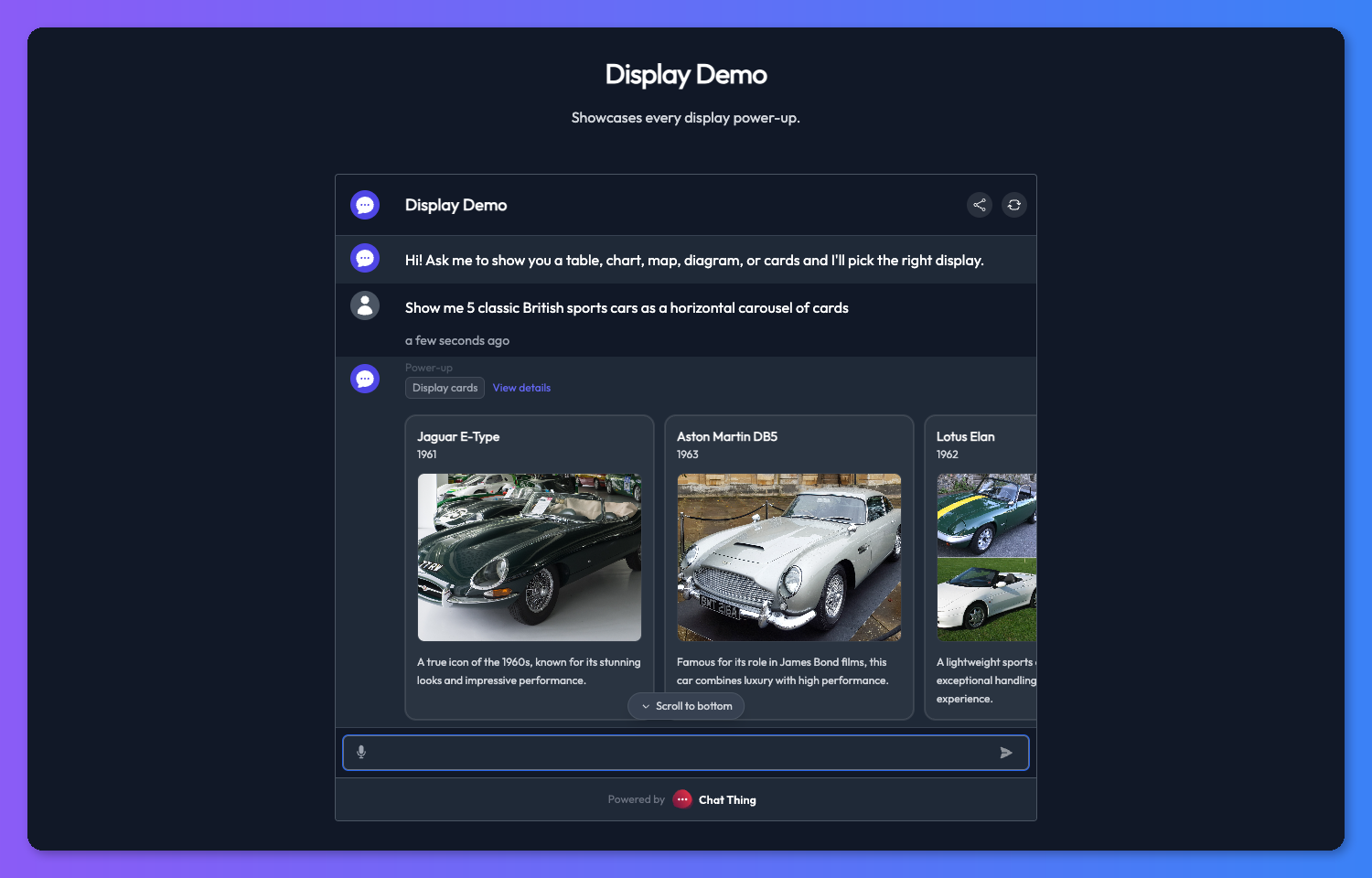
- Horizontal - a swipeable carousel of cards. Great for quick browsing when you want the user to skim several items at a glance.
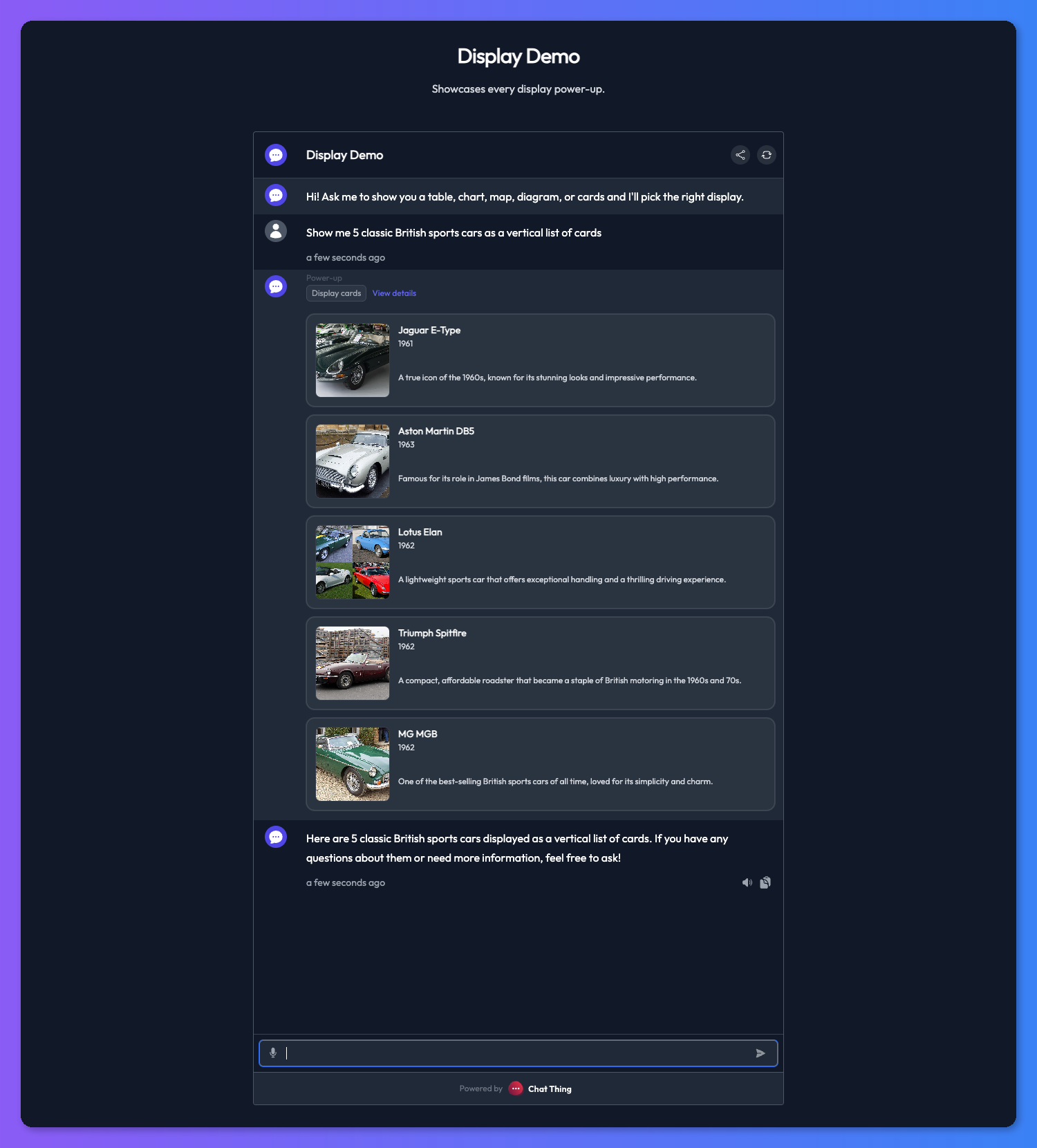
- Vertical - a stacked list where each card has more room to breathe. Better when each card has a longer description or more detail that you want the user to actually read.
You can let the bot pick the layout per message, or pin it in the power-up settings so every response uses the same layout.
Card fields
Every card supports the following fields:
- title (required) - the short primary heading for the card.
- description (required) - a short supporting description. Keep this concise so the card stays scannable.
- subtitle (optional) - a short secondary line, useful for things like a price, a category, or a status.
- image (optional) - a direct image URL that is rendered at the top of the card.
- url (optional) - a link that opens when the card is clicked.
Every response needs at least one card. The bot will fill in the required fields on every card and only include the optional ones when it has real values for them.
How the bot builds cards
Display Cards does not call out to any external service. When the bot decides to use this power-up, it constructs the cards directly from whatever it already has in context - messages earlier in the conversation, results from data sources, and output from other power-ups it has used on the way to answering.
This makes Display Cards a great partner for data sources and other retrieval-style power-ups. The bot fetches information first, then uses Display Cards to present that information as a nice visual rather than a bulleted list.
Tips
Keep cards short and scannable
Resist the urge to cram everything into each card. Short titles and one or two sentences of description read much better in a chat window, especially on mobile. If you find the bot is writing long descriptions, tell it so in the power-up description or the bot's system message.
Nudge the bot from the system message
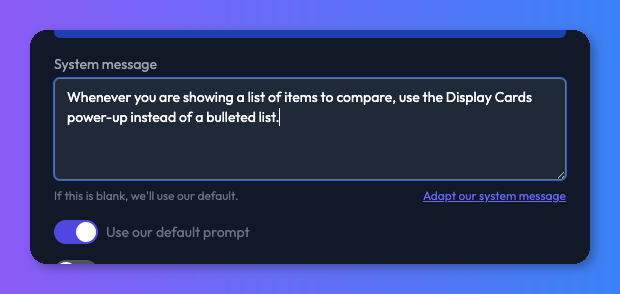
Your bot's system message is a good place to steer when cards get used. Something like "Whenever you are showing a list of items to compare, use the Display Cards power-up instead of a bulleted list" is often enough to change the bot's default behaviour.
Combine with a data source
Cards work best when the bot has real content to show. Pair Display Cards with a data source full of products, listings, or FAQs so the bot has something concrete to render rather than inventing items on the fly.